Web archive
GeoServer is packaged as a standalone Web Archive (geoserver.war) file for use with existing application servers such as Apache Tomcat and Jetty.
| JavaEE | JakartaEE | Tomcat | Jetty | GeoServer |
|---|---|---|---|---|
| Servlet API 6.1 | Tomcat 11.0.x | Jetty 12.1 | GeoServer 3 | |
| Servlet API 6.0 | Tomcat 10.1.x | Jetty 12.0 | not supported | |
| Servlet API 5.0 | Tomcat 10.0.x | Jetty 11.0 | not supported | |
| Servlet API 4 | Tomcat 9.x | GeoServer 2 | ||
| Servlet API 3.1 | Jetty 9.4 | GeoServer 2 |
GeoServer is tested using Tomcat 11.0.x, and this is the recommended application server. Other application servers have been known to work, but are not tested regularly by community members.
Note
GeoServer 3 is compatible with Tomcat 11.0.x which provides Jakarta EE Servlet API 6.1.x and annotation processing.
Note
GeoServer 2 is compatible with Tomcat 9.x which provides the required Java Enterprise Edition Servlet API 4 and annotation processing.
Installation
-
Make sure you have a Java Runtime Environment (JRE) installed on your system. GeoServer requires a Java 17 or Java 21 environment.
Linux
We recommend using your Linux package manager allowing Java to be managed and patched alongside your operating system:
You may also choose to download an OpenJDK release for Linux:
The developer tool SDKMan may be used to manage several versions:
# list to determine latest Temurin JDK 17
sdk list java | grep "17.*-tem"
sdk install java 21.0.8-tem

# list to determine latest Temurin JDK 21
sdk list java | grep "21.*-tem"
sdk install java 17.0.16-tem

# change between versions 17.0.16-tem and 21.0.8-tem locally
sdk install use 17.0.16-tem
Windows
Download an OpenJDK release for Windows:
- Temurin 17 (LTS) Temurin 17 (LTS) - Recommended
- Temurin 21 (LTS)
MacOS
Download an OpenJDK release for MacOS:
- Temurin 17 (LTS) Temurin 17 (LTS) - Recommended
- Temurin 21 (LTS)
Homebrew package manager provides a “formula” to install OpenJDK:
The developer tool SDKMan may be used to manage several versions:
# list to determine latest Temurin JDK 17
sdk list java | grep "17.*-tem"
sdk install java 21.0.8-tem

# list to determine latest Temurin JDK 21
sdk list java | grep "21.*-tem"
sdk install java 17.0.16-tem

# change between versions 17.0.16-tem and 21.0.8-tem locally
sdk install use 17.0.16-tem
Note
For more information about Java and GeoServer compatibility, please see the section on Java Considerations.
-
Navigate to the GeoServer Download page.
-
Select the version of GeoServer that you wish to download.
- If you're not sure, select Stable release.
Examples provided for GeoServer 3.1.0.
- Testing a Nightly release is a great way to try out new features, and test community modules. Nightly releases change on an ongoing basis and are not suitable for a production environment.
Examples are provided for GeoServer 3.1, which is provided as a Nightly release.
-
Select Web Archive on the download page:
-
Download and unpack the archive.
-
Deploy the web archive as you would normally. Often, all that is necessary is to copy the
geoserver.warfile to the application server'swebappsdirectory, and the application will be deployed by the application server.Note
A restart of your application server may be necessary.
-
In a web browser, navigate to http://localhost:8080/geoserver.
When you see the GeoServer Welcome page, then GeoServer is successfully installed.
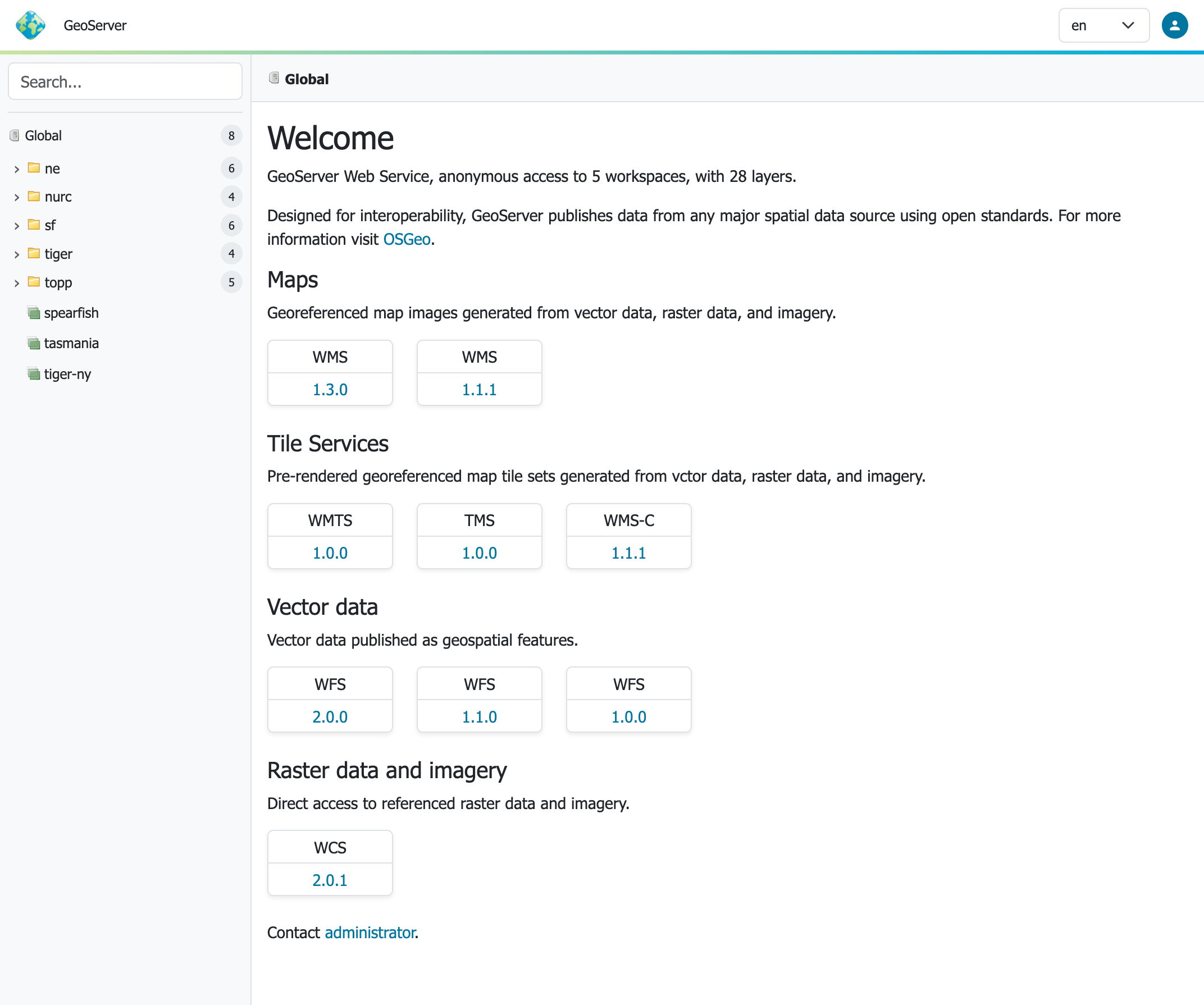
GeoServer Welcome Page
-
To shut down GeoServer, either close the persistent command-line window, or run the
shutdown.shfile inside thebindirectory.
Additional Tomcat tutorials
Several additional tomcat tutorials are available:
- Tomcat Hardening - Recommended
- Tomcat JNDI