Resource Browser Examples
Uploading an icon to a styles folder
To upload a file to the global styles folder:
-
Use Resource Browser to select / > styles in the resource tree.
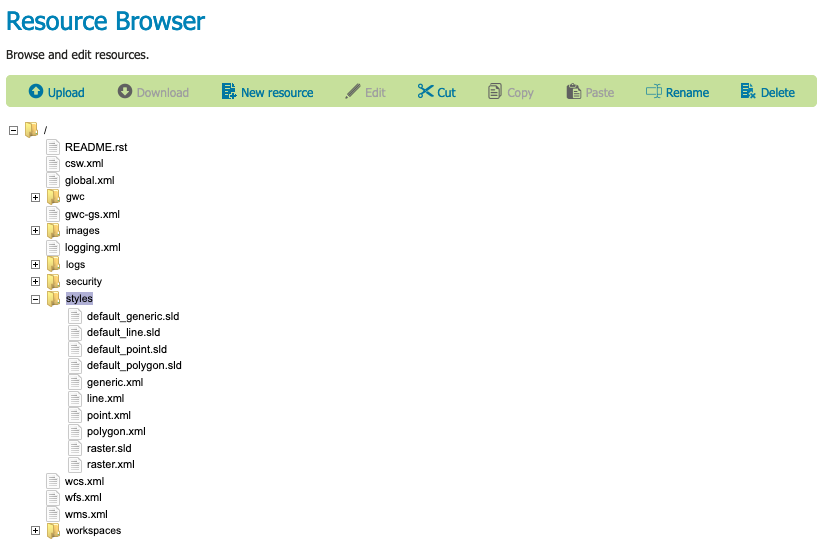
Resource Browser styles folder
-
Click Upload button to open Upload a Resource dialog.
-
Use Browse to select a file from the local file system.
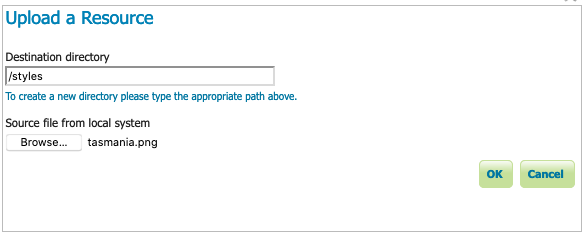
Upload icon to styles folder
-
Press OK to upload the file.
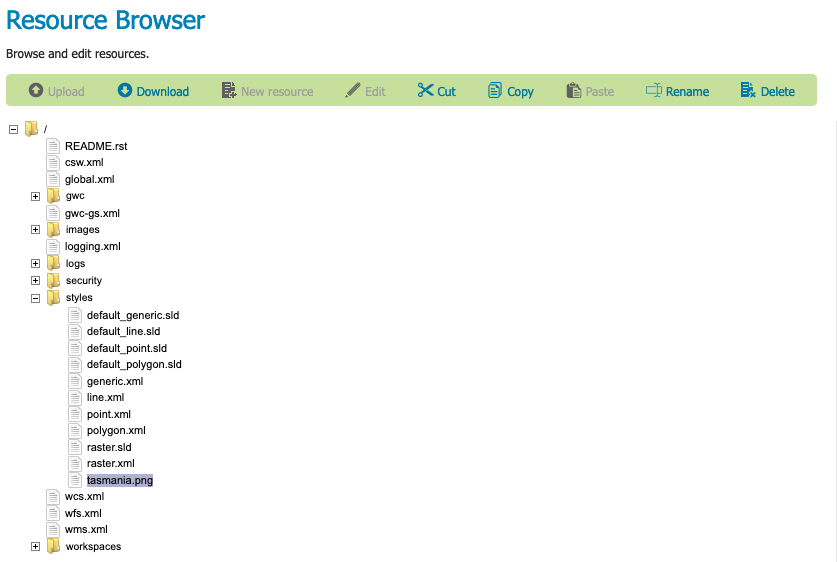
Resource Browser icon
Creating a control-flow configuration file
Many extensions, such as Control flow module, are managed using a configuration file.
To create a controlflow.properties file:
-
Use Resource Browser to select the root / folder in the resource tree.
This can be tricky as the label is not very long.
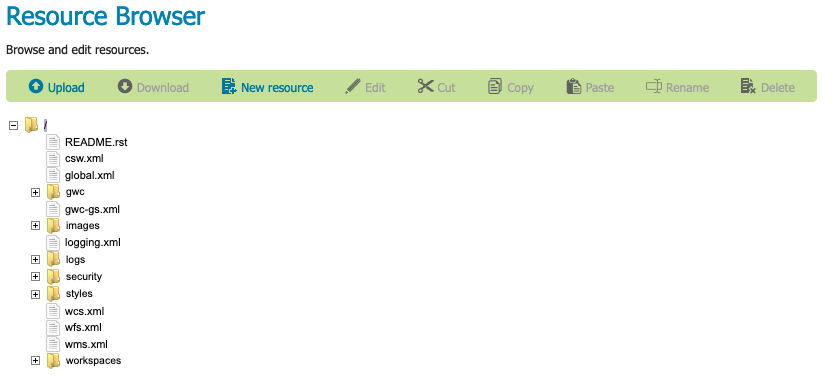
Resource Browser root folder
-
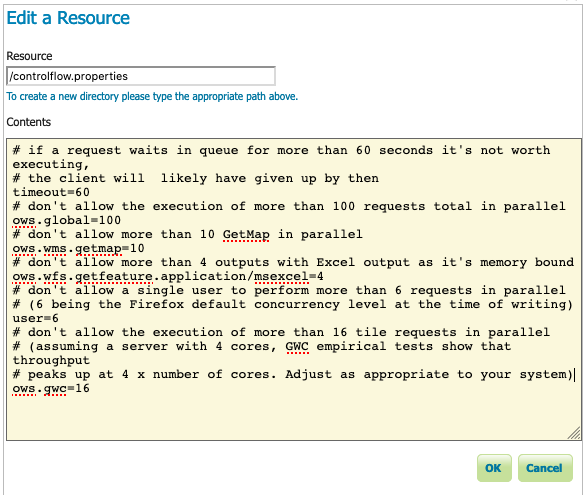
Click New resource button to open Edit a Resource dialog.
-
Resource:
controlflow.properties -
Content: file contents
# if a request waits in queue for more than 60 seconds it's not worth # executing, the client will likely have given up by then timeout=60 # don't allow the execution of more than 100 requests total in parallel ows.global=100 # don't allow more than 10 GetMap in parallel ows.wms.getmap=10 # don't allow more than 4 outputs with Excel output as it's memory bound ows.wfs.getfeature.application/msexcel=4 # don't allow a single user to perform more than 6 requests in parallel # (6 being the Firefox default concurrency level at the time of writing) user=6 # don't allow the execution of more than 16 tile requests in parallel # (assuming a server with 4 cores, GWC empirical tests show that throughput # peaks up at 4 x number of cores. Adjust as appropriate to your system) ows.gwc=16 -
-
Press OK to create the resource.
Edit a Resource controlflow.properties