Usage via the web interface
Warning
Backup and Restore is a community module. It is usable, but does not have the same support guarantees as official extensions.
Once the Backup and Restore plugin is installed, a new Backup and Restore section appears in the GeoServer web admin interface.
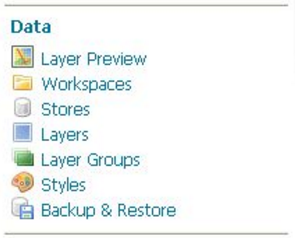
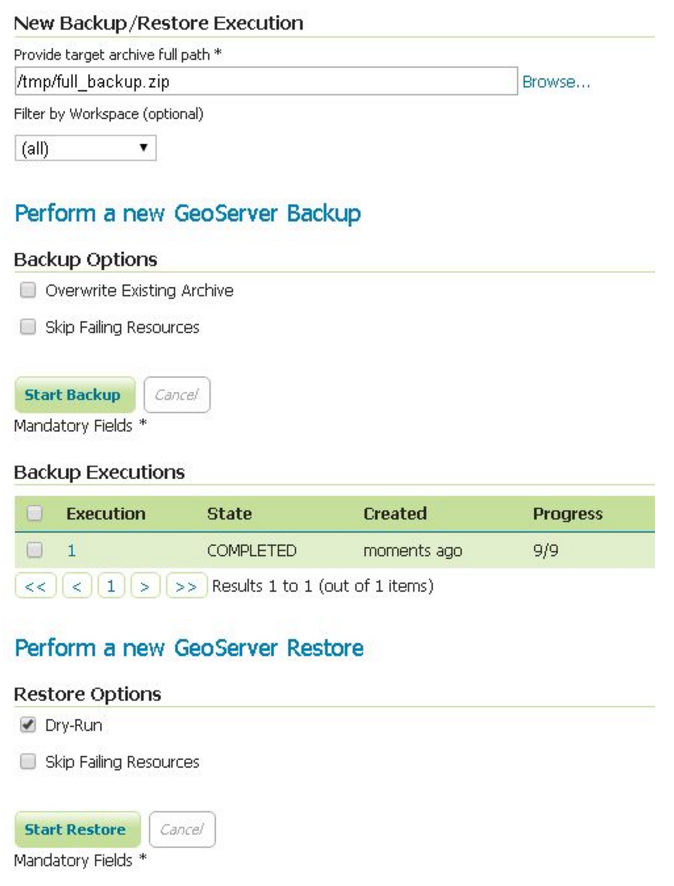
Clicking the Backup and Restore link opens the configuration page, where you set the archive path, optional filters and the backup or restore options.
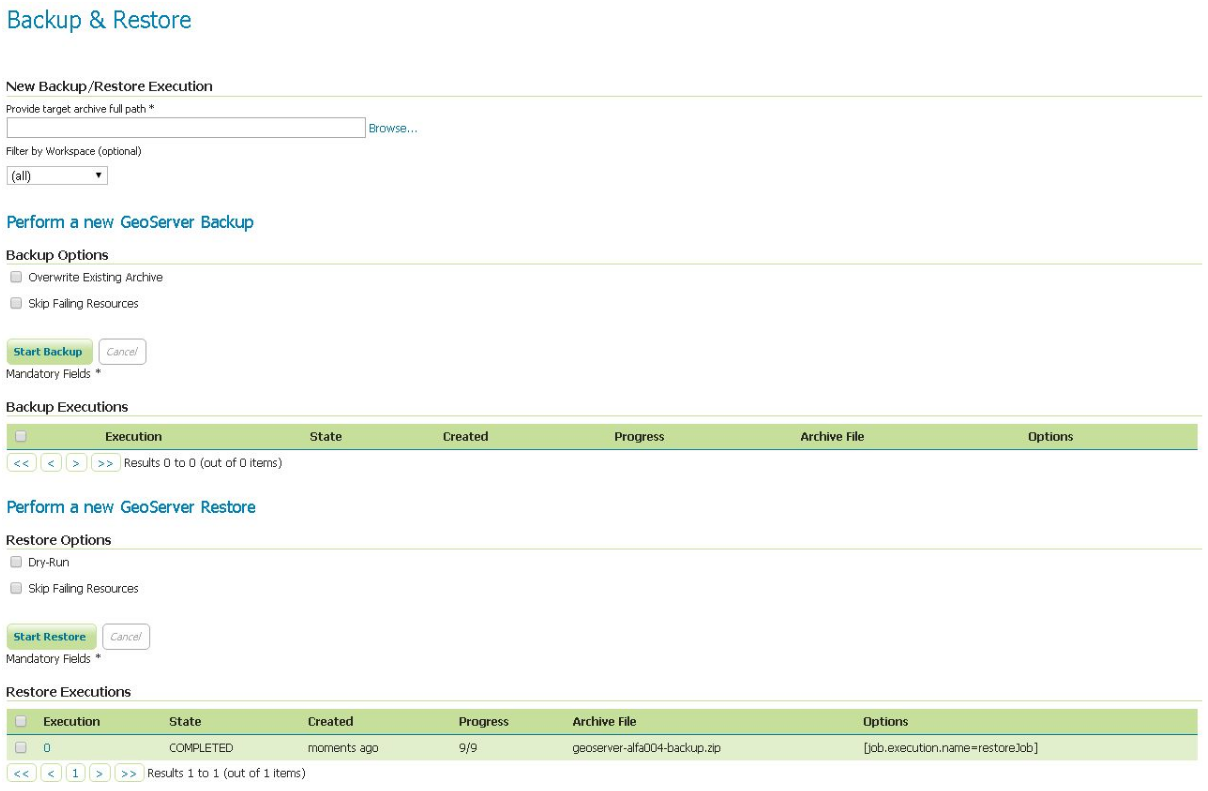
Configuration parameters
- Archive full path — path on the server file system to the archive to create (backup) or to read (restore). The job does not start until a valid
.zippath is given. Use Browse to navigate the server folders. - Filter by Workspace / Store / Layer — optional filters that restrict the job to the matching catalog objects. See Saving or restoring only specific workspaces below.
- Backup options and Restore options — the checkboxes summarised below.
- Backup Executions and Restore Executions — reports of running and previously run jobs.
Backup options
The backup checkboxes select what the archive contains and how it is written. Common ones:
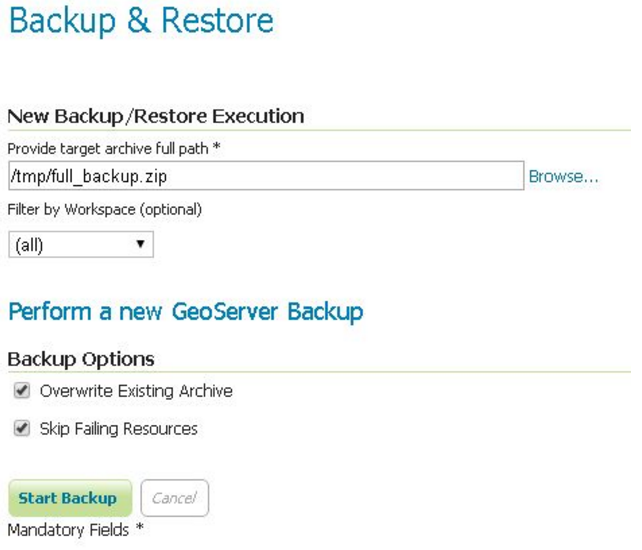
- Overwrite Existing Archive — replace an archive that already exists at the target path.
- Skip Failing Resources — best-effort backup: log and skip a resource that fails instead of aborting the job.
- Clean-Up Temp Resources — delete the temporary working folder when the job ends.
- Skip GeoWebCache — exclude the GWC catalog and tile-layer folders.
- Parameterize Store Passwords — write store passwords as parameterizable tokens instead of encrypted values (the REST
BK_PARAM_PASSWORDSoption). - Preserve Catalog IDs (for migration to another instance) — keep catalog object ids and write cross-references by id, producing a portable migration archive. On by default. Turn it off only to produce a legacy name-based archive whose ids are regenerated on restore. See Migrating a catalog to another GeoServer instance.
- Skip Security Settings — exclude the security configuration (users, groups, roles, services). On by default.
- Skip Global Settings — exclude the global settings. On by default.
For the complete checkbox list, defaults and the matching REST option names, see the options reference.
Restore options
The restore checkboxes select what is restored and whether the target catalog is purged first. Common ones:
- Dry-Run — validate the archive without applying any change to the running configuration. See Dry-run restore.
- Skip Failing Resources — best-effort restore: log and skip a resource that fails instead of aborting the job.
- Clean-Up Temp Resources — delete the temporary working folder when the job ends.
- Skip GeoWebCache — exclude the GWC catalog and tile-layer folders.
- Skip Security Settings — do not restore the security configuration. On by default.
- Skip Global Settings — do not restore the global settings. On by default.
- Purge Existing Resources — drop incoming resources where possible before restoring (for example, remove existing workspaces). On by default. Uncheck it to merge into the existing catalog without deleting.
- Merge Security (cross-instance migration) — add the archive's users, groups and roles to this instance's existing security services instead of replacing the whole security configuration. Off by default (replace mode). Applies only when security is actually restored — that is, when Skip Security Settings is unchecked.
For the complete checkbox list, defaults and the matching REST option names, see the options reference.
Warning
Skip Security Settings is checked by default for a reason: restoring security configuration replaces the target's users, groups, roles and authentication settings. Uncheck it only when you understand the archive's security content and intend to overwrite the target. See the cross-instance security migration use case.
Note
Some options — password-token substitution, the pre-flight validation gate (BK_FAIL_ON_INVALID) and security keystore re-encryption (BK_SOURCE_MASTER_PASSWORD / BK_TARGET_MASTER_PASSWORD) — are available only through the REST API, which exposes the full option set. See the options reference.
Performing a full backup
To perform a full backup, provide the full path of the target .zip archive where the configuration is stored, then select any backup options before starting.
Note
The backup stores only the configuration files, not the original data.
Note
While a backup or restore runs, GeoServer locks the catalog and configuration, so other sections are unavailable until the job finishes. You can still stop or abandon a running job — see Cancelling a running job.
While the job runs, the status next to the Start button updates automatically and reports progress as <status> — step <done>/<total> (<current step>). When the backup finishes, you are redirected to an Execution Summary page.
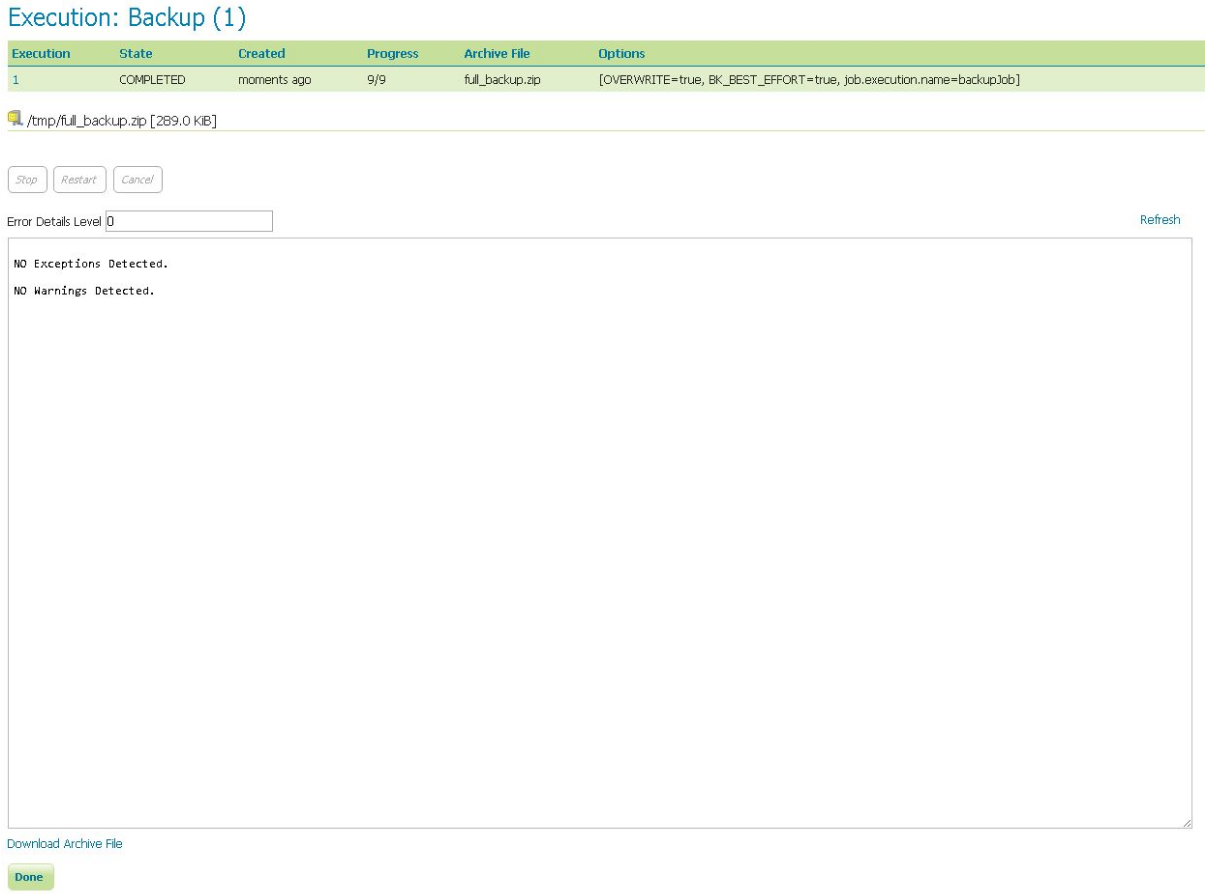
The same page can be reached later by clicking an execution link on the main page.
Note
The Execution Details page refreshes itself while the job runs, so step states and progress update without any action; a manual refresh link is also available. Auto-refresh stops once the job reaches a terminal state.
Note
The list of executions is not persisted, so it is reset after a GeoServer container restart.
At the bottom of the Execution Details page, the Download Archive File link downloads the .zip archive directly.

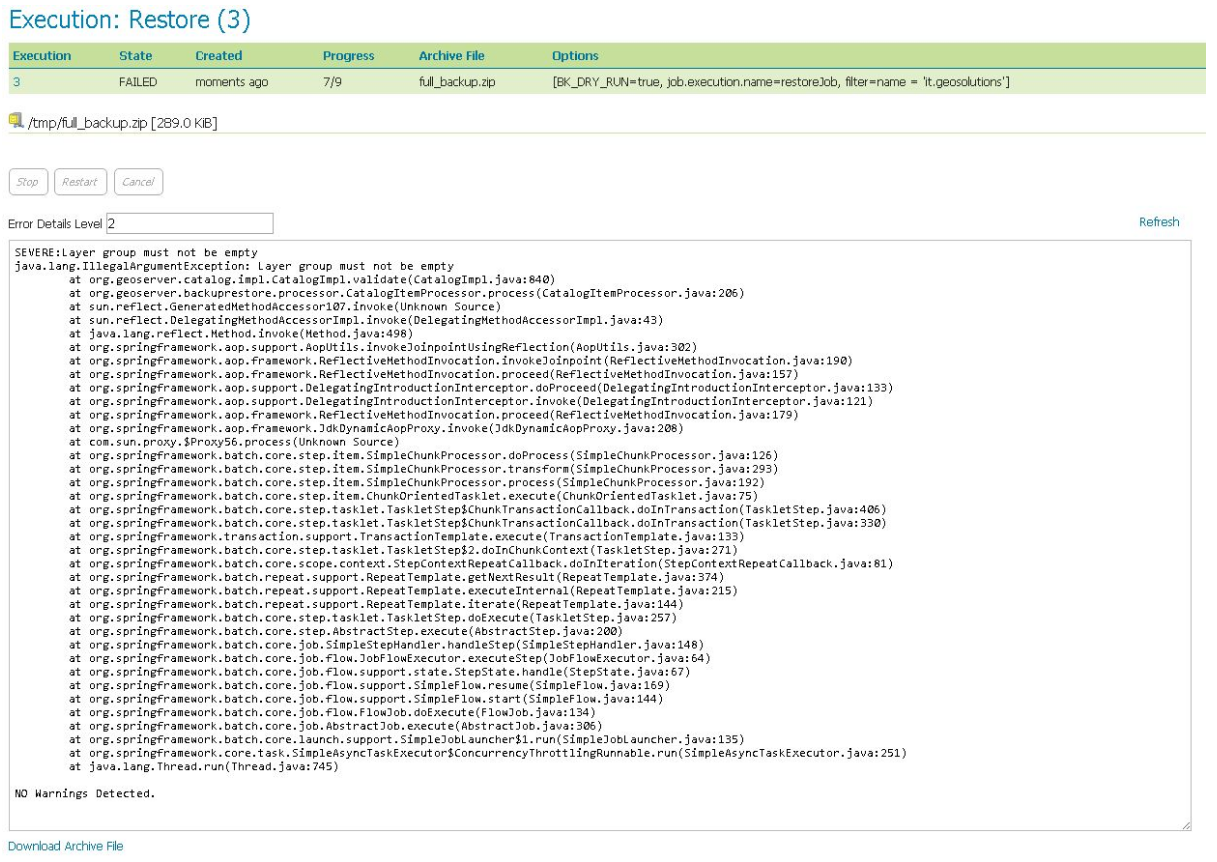
If the job caught any exceptions or warnings, they are listed on the execution summary. The Error Detail Level control reveals the stack trace for each, so you can inspect the cause.
Restoring
The steps mirror a backup: select the .zip archive full path and any restore options, then start the restore.
Warning
A non-dry-run restore replaces your current GeoServer configuration with the archive's contents. Back up everything before starting a restore.
Dry-run restore
The Dry-Run option lets you test a .zip archive before performing a full restore. Since 3.x a dry-run snapshots and rolls back the affected data-directory subtrees, so it leaves the data directory untouched.
Note
Always run a dry-run before restoring a new configuration.
A failing dry-run is reported on the execution summary.
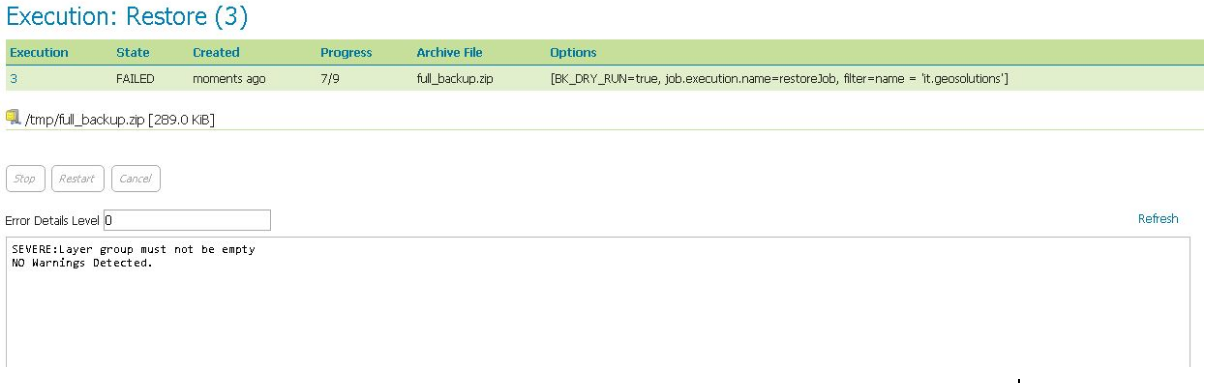
Raise the Error Detail Level and refresh to expose the original cause of each failure.
Cancelling a running job
A backup or restore can be stopped while it is still running. From the Backup Executions or Restore Executions report, open the running execution and use the stop control to stop (graceful) or abandon (force) it; the job moves to a terminal state and the configuration lock is released. The same can be done from automation with DELETE /rest/br/backup/{id} or DELETE /rest/br/restore/{id} — see Usage via the REST API.
Saving or restoring only specific workspaces
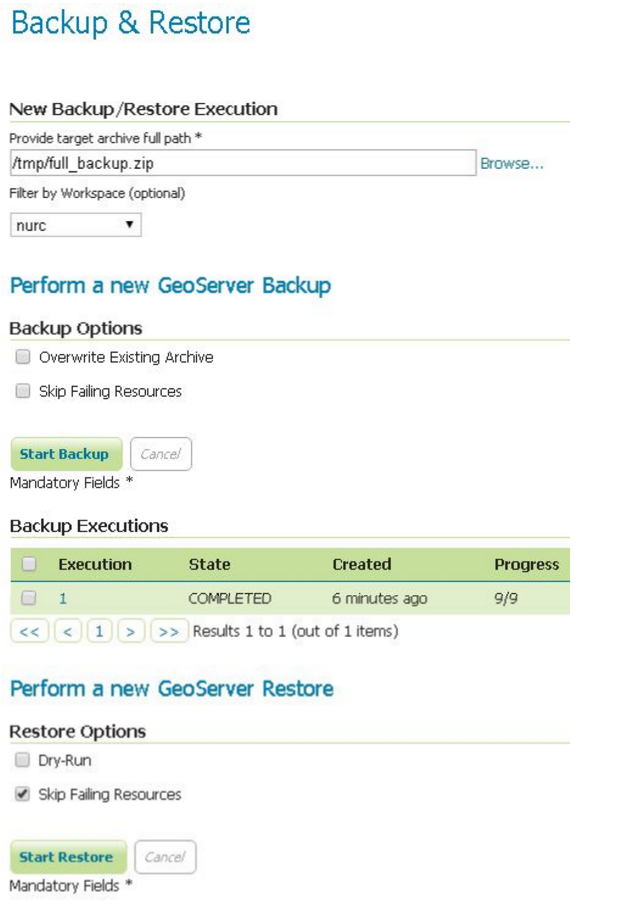
You can back up or restore a subset of the catalog. From the web interface you can select all workspaces or a single workspace to back up or restore. The REST API additionally lets you filter more than one workspace, and filter by store or layer with ECQL — see Usage via the REST API.
Note
An archive that contains only a subset of workspaces cannot be used to restore the missing ones. To migrate or consolidate a full catalog, back up the whole catalog (the default archive already preserves ids for migration) and restore only the workspaces you need.