JWT Headers configuration
The JWT Headers module covers three main use cases:
- Simple Text, JSON, or JWT headers for the username
- Verification of JWT Access Tokens
- Getting roles from a JSON header or an attached JWT Access Token claim
Configuration Options
Create the filter from Security > Authentication > Authentication Filters > Add new > JWT Headers. This is a new filter set up for bearer tokens in the Authorization header, with the roles read from the same token:
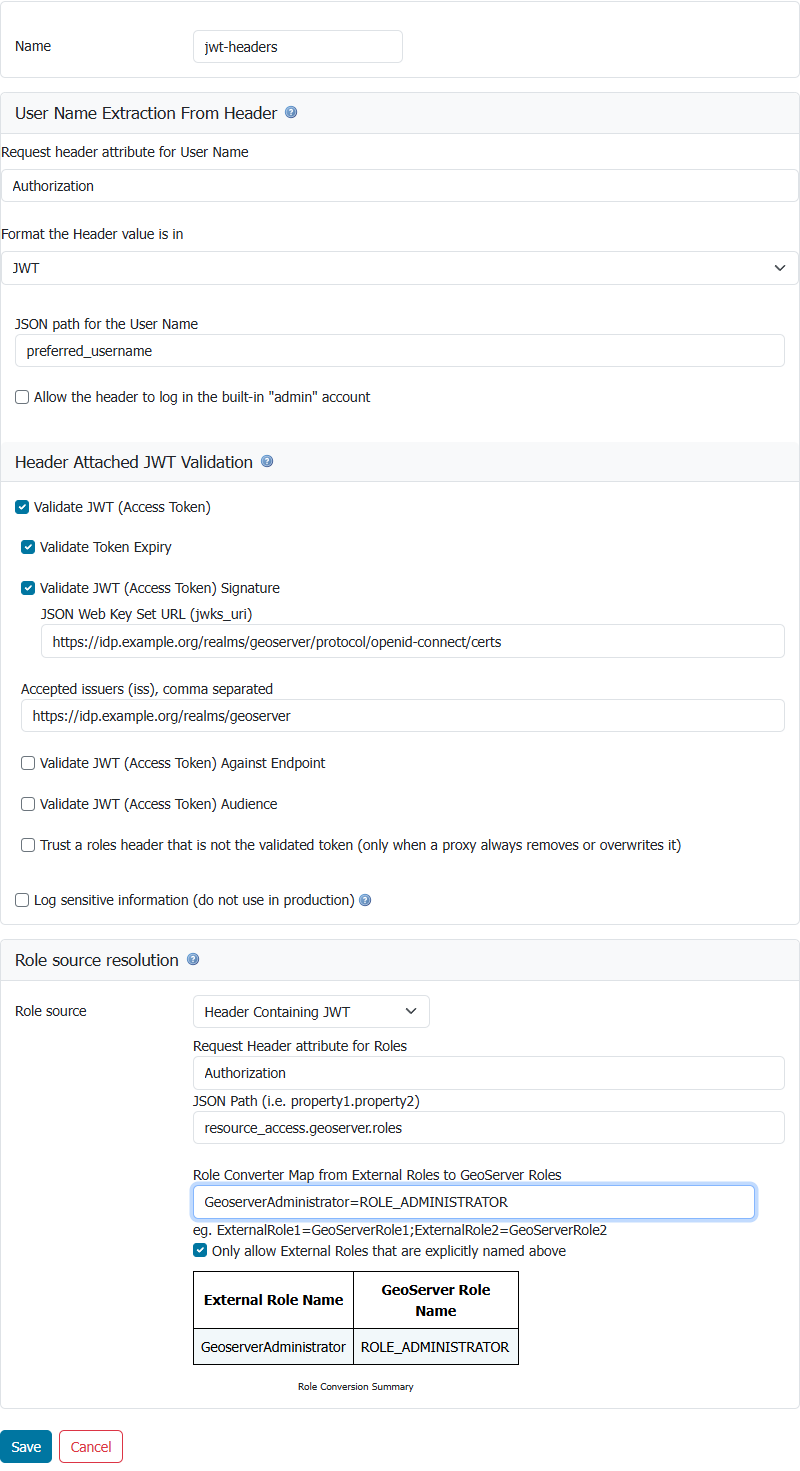
User Name Options
| Config Option | Meaning |
|---|---|
| Request header attribute for User Name | The name of the HTTP header item that contains the user name. |
| Format the Header value is in | Format that the user name is in: Simple String (user name is the header's value), JSON (header is a JSON string, use JSON path), or JWT (header is a base64 JWT string, use JSON path). |
| JSON path for the User Name | If the user name is in JSON or JWT format, this is the JSON path to the user's name. |
| Allow the header to log in the built-in "admin" account | If unchecked, a request whose user name is admin is not authenticated by this filter. Unchecked for filters created in the web administration interface; filters created before this option existed, or through the REST API without it, keep allowing it. |
The built-in root account is never accepted from the header, whatever the configuration: it is the emergency account backed by the master password and cannot be represented by an external identity.
If you are using Apache's mod_auth_openidc, then Apache will typically add:
- an
OIDC_id_token_payloadheader item (containing a JSON string of the ID token claims) - an
OIDC_access_tokenheader item (containing a base64 JWT Access Token) - optionally, a simple header item with individual claim values (i.e.
OIDC_access_token)
Here are some example values;
OIDC_id_token_payload: {"exp":1708555947,"iat":1708555647,"auth_time":1708555288,"jti":"42ee833e-89d3-4779-bd9d-06b979329c9f","iss":"http://localhost:7777/realms/dave-test2","aud":"live-key2","sub":"98cfe060-f980-4a05-8612-6c609219ffe9","typ":"ID","azp":"live-key2","nonce":"4PhqmZSJ355KBtJPbAP_PdwqiLnc7B1lA2SGpB0zXr4","session_state":"7712b364-339a-4053-ae0c-7d3adfca9005","at_hash":"2Tyw8q4ZMewuYrD38alCug","acr":"0","sid":"7712b364-339a-4053-ae0c-7d3adfca9005","upn":"david.blasby@geocat.net","resource_access":{"live-key2":{"roles":["GeonetworkAdministrator","GeoserverAdministrator"]}},"email_verified":false,"address":{},"name":"david blasby","groups":["default-roles-dave-test2","offline_access","uma_authorization"],"preferred_username":"david.blasby@geocat.net","given_name":"david","family_name":"blasby","email":"david.blasby@geocat.net"}
OIDC_access_token: eyJhbGciOiJSUzI1NiIsInR5cCIgOiAiSldUIiwia2lkIiA6ICItb0QyZXphcjF3ZHBUUmZCS0NqMFY4cm5ZVkJGQmxJLW5ldzFEREJCNTJrIn0.eyJleHAiOjE3MDg1NTU5NDcsImlhdCI6MTcwODU1NTY0NywiYXV0aF90aW1lIjoxNzA4NTU1Mjg4LCJqdGkiOiI0M2UyYjUwZS1hYjJkLTQ2OWQtYWJjOC01Nzc1YTY0MTMwNTkiLCJpc3MiOiJodHRwOi8vbG9jYWxob3N0Ojc3NzcvcmVhbG1zL2RhdmUtdGVzdDIiLCJhdWQiOiJhY2NvdW50Iiwic3ViIjoiOThjZmUwNjAtZjk4MC00YTA1LTg2MTItNmM2MDkyMTlmZmU5IiwidHlwIjoiQmVhcmVyIiwiYXpwIjoibGl2ZS1rZXkyIiwibm9uY2UiOiI0UGhxbVpTSjM1NUtCdEpQYkFQX1Bkd3FpTG5jN0IxbEEyU0dwQjB6WHI0Iiwic2Vzc2lvbl9zdGF0ZSI6Ijc3MTJiMzY0LTMzOWEtNDA1My1hZTBjLTdkM2FkZmNhOTAwNSIsImFjciI6IjAiLCJyZWFsbV9hY2Nlc3MiOnsicm9sZXMiOlsiZGVmYXVsdC1yb2xlcy1kYXZlLXRlc3QyIiwib2ZmbGluZV9hY2Nlc3MiLCJ1bWFfYXV0aG9yaXphdGlvbiJdfSwicmVzb3VyY2VfYWNjZXNzIjp7ImxpdmUta2V5MiI6eyJyb2xlcyI6WyJHZW9uZXR3b3JrQWRtaW5pc3RyYXRvciIsIkdlb3NlcnZlckFkbWluaXN0cmF0b3IiXX0sImFjY291bnQiOnsicm9sZXMiOlsibWFuYWdlLWFjY291bnQiLCJtYW5hZ2UtYWNjb3VudC1saW5rcyIsInZpZXctcHJvZmlsZSJdfX0sInNjb3BlIjoib3BlbmlkIHBob25lIG9mZmxpbmVfYWNjZXNzIG1pY3JvcHJvZmlsZS1qd3QgcHJvZmlsZSBhZGRyZXNzIGVtYWlsIiwic2lkIjoiNzcxMmIzNjQtMzM5YS00MDUzLWFlMGMtN2QzYWRmY2E5MDA1IiwidXBuIjoiZGF2aWQuYmxhc2J5QGdlb2NhdC5uZXQiLCJlbWFpbF92ZXJpZmllZCI6ZmFsc2UsImFkZHJlc3MiOnt9LCJuYW1lIjoiZGF2aWQgYmxhc2J5IiwiZ3JvdXBzIjpbImRlZmF1bHQtcm9sZXMtZGF2ZS10ZXN0MiIsIm9mZmxpbmVfYWNjZXNzIiwidW1hX2F1dGhvcml6YXRpb24iXSwicHJlZmVycmVkX3VzZXJuYW1lIjoiZGF2aWQuYmxhc2J5QGdlb2NhdC5uZXQiLCJnaXZlbl9uYW1lIjoiZGF2aWQiLCJmYW1pbHlfbmFtZSI6ImJsYXNieSIsImVtYWlsIjoiZGF2aWQuYmxhc2J5QGdlb2NhdC5uZXQifQ.Iq8YJ99s_HBd-gU2zaDqGbJadCE--7PlS2kRHaegYTil7WoNKfjfcH-K-59mHGzJm-V_SefE-iWG63z2c6ChddzhvG8I_O5vDNFoGlGOQFunZC379SqhqhCEdwscEUDkNA3iTTXvK9vn0muStDiv9OzpJ1zcpqYqsgxGbolGgLJgeuK8yNDH7kzDtoRzHiHw2rx4seeVpxUYAjyg_cCkEjRt3wzud7H3xlfQWRx75YfpJ0pnVphuXYR7Z8x9p6hCPtrBfDeriudm-wkwXtcV2LNlXrZ2zpKS_6Zdxzza2lN30q_6DQXHGo8EAIr8SiiQrxPQulNiX9r8XmQ917Ep0g
It is recommended to either use the OIDC_id_token_payload (JSON) or OIDC_access_token (JWT) header.
For OIDC_id_token_payload:
- Request header attribute for User Name:
OIDC_id_token_payload - Format the Header value is in:
JSON - JSON path for the User Name:
preferred_username
For OIDC_access_token:
- Request header attribute for User Name:
OIDC_access_token - Format the Header value is in:
JWT - JSON path for the User Name:
preferred_username
New Role Source Options
You can use the standard role source options in GeoServer (Request Header, User Group Service, or Role Service). The JWT Headers module adds two more role sources - Header Containing JSON String and Header containing JWT.
| Config Option | Meaning |
|---|---|
| Role Source | Which Role Source to use: Header containing JSON String (header contains a JSON claims object) or Header Containing JWT (header contains a Base64 JWT Access Token). |
| Request Header attribute for Roles | Name of the header item the JSON or JWT is contained in |
| JSON Path | Path in the JSON object or JWT claims that contains the roles. This should either be a simple string (single role) or a list of strings. |
When Validate JWT (Access Token) is enabled, the roles must come from the token that was validated: use Header Containing JWT with the same header as the user name, or take the roles from a Role Service or User Group Service. A roles header that is not the validated token, Header Containing JSON String and Request Header are refused when the filter is saved. A filter saved before this check keeps authenticating its users but takes no roles from such a header, and the GeoServer log reports it when the filter is loaded.
If roles are deliberately carried by a separate header that a proxy in front of GeoServer always removes or overwrites on incoming requests, check Trust a roles header that is not the validated token to keep reading it.
Using the example OIDC_id_token_payload (JSON) or OIDC_access_token (JWT) shown above, the claims are:
{
   "exp": 1708555947,
   "iat": 1708555647,
   "auth_time": 1708555288,
   "jti": "42ee833e-89d3-4779-bd9d-06b979329c9f",
   "iss": "http://localhost:7777/realms/dave-test2",
   "aud": "live-key2",
   "sub": "98cfe060-f980-4a05-8612-6c609219ffe9",
   "typ": "ID",
   "azp": "live-key2",
   "nonce": "4PhqmZSJ355KBtJPbAP_PdwqiLnc7B1lA2SGpB0zXr4",
   "session_state": "7712b364-339a-4053-ae0c-7d3adfca9005",
   "at_hash": "2Tyw8q4ZMewuYrD38alCug",
   "acr": "0",
   "sid": "7712b364-339a-4053-ae0c-7d3adfca9005",
   "upn": "david.blasby@geocat.net",
   "resource_access":
   {
      "live-key2":
      {
         "roles":
            [
               "GeonetworkAdministrator",
               "GeoserverAdministrator"
            ]
      }
   },
   "email_verified": false,
   "address": { },
   "name": "david blasby",
   "groups": ["default-roles-dave-test2", "offline_access", "uma_authorization"],
   "preferred_username": "david.blasby@geocat.net",
   "given_name": "david",
   "family_name": "blasby",
   "email": "david.blasby@geocat.net"
}
In this JSON set of claims (mirrored in the JWT claims of the Access Token), and the two roles from the IDP are "GeonetworkAdministrator", and "GeoserverAdministrator". The JSON path to the roles is resource_access.live-key2.roles.
Role Conversion
The JWT Headers module also allows for converting roles (from the external IDP) to the GeoServer internal role names.
| Config Option | Meaning |
|---|---|
| Role Converter Map from External Roles to GeoServer Roles | This is a ";" delimited map in the form of ExternalRole1=GeoServerRole1;ExternalRole2=GeoServerRole2 |
| Only allow External Roles that are explicitly named above | If checked, external roles that are not mentioned in the conversion map will be ignored. If unchecked, those external roles will be turned into GeoServer roles of the same name. |
For example, a conversion map like GeoserverAdministrator=ROLE_ADMINISTRATOR will convert our IDP "GeoserverAdministrator" role to GeoServer's "ROLE_ADMINISTRATOR".
In our example, the user has two roles "GeoserverAdministrator" and "GeonetworkAdministrator". If the "Only allow External Roles that are explicitly named above" is checked, then GeoServer will only see the "ROLE_ADMINISTRATOR" role. If unchecked, it will see "ROLE_ADMINISTRATOR" and "GeonetworkAdministrator". In neither case will it see the converted "GeoserverAdministrator" roles.
You can also have multiple GeoServer roles from one external (OIDC) role. For example, this role conversion:
GeoserverAdministrator=ROLE_ADMINISTRATOR;GeoserverAdministrator=ADMIN
Will give users with the OIDC role GeoserverAdministrator two GeoServer roles - ROLE_ADMINISTRATOR and ADMIN.
JWT Validation
If you are using Apache's mod_auth_openidc module, then you do not have to do JWT validation - Apache will ensure they are valid when it attaches the headers to the request.
However, if you are using robot access to GeoServer, you can attach an Access Token to the request header for access.
OR
You would then setup the user name to come from a JWT token in the Authentication header with a JSON path like preferred_username.
You can also extract roles from the Access Token in a similar manner - make sure your IDP imbeds roles inside the Access Token.
| Config Option | Meaning |
|---|---|
| Validate JWT (Access Token) | If unchecked, do not do any validation. |
| Validate Token Expiry | If checked, validate the exp claim in the JWT and ensure it is in the future. This should always be checked so you do not allow expired tokens. |
| Validate JWT (Access Token) Signature | If checked, validate the Token's Signature |
| JSON Web Key Set URL (jwks_uri) | URL for a JWK Set. This is typically called jwks_uri in the OIDC metadata configuration. This will be downloaded and used to check the JWT's signature. This should always be checked to ensure that the JWT has not been modified. |
| Accepted issuers (iss) | The iss values accepted, separated by commas. This is typically called issuer in the OIDC metadata configuration. When set, it is checked whenever the token is validated. Required when the signature is validated, since a signing key set can be shared by several issuers (for example the tenants of a multi-tenant identity provider). |
| Validate JWT (Access Token) Against Endpoint | If checked, validate the access token against an IDP's token verification URL. |
| URL (userinfo_endpoint) | IDP's token validation URL. This URL will be retrieved by adding the Access Token to the Authentication: Bearer <access token> header. It should return a HTTP 200 status code if the token is valid. This is recommended by the OIDC specification. |
| Also validate Subject | If checked, the sub claim of the Access Token and the "userinfo_endpoint" sub claim will be checked to ensure they are equal. This is recommended by the OIDC specification. |
| Validate JWT (Access Token) Audience | If checked, the audience of the Access Token is checked. This is recommended by the OIDC specification since this verifies that the Access Token is meant for us. |
| Claim Name | The name of the claim the audience is in (aud, azp, or appid claim) the Access Token. |
| Required Claim Value | The value this claim must be (if the claim is a list of string, then it must contain this value). |
| Trust a roles header that is not the validated token | See the role source options above. Only check it when a proxy always removes or overwrites that header. |
A filter created in the web administration interface starts out validating the token, its signature and its expiry, and only accepts the external roles listed in the role converter. Filters created through the REST API get only the settings they are sent.
With validation enabled the filter cannot be saved unless the user name format is JWT and the signature or the endpoint check is configured, with a valid URL and, for the signature, at least one accepted issuer. Saving also checks that a role source is selected and that the selected role or user/group service exists. Filters saved before these checks keep their stored settings; the GeoServer log reports, when the filter is loaded, one that validates without a signature or endpoint check, one that validates signatures without accepted issuers, and one whose roles are not taken from the validated token.
To accept only tokens issued for GeoServer, and not tokens the same identity provider issued to other applications, also validate the audience.
Troubleshooting
The module includes a JWT_HEADERS_LOGGING logging profile, installed in the data directory on startup. It quiets most GeoServer logging and turns on detailed logging for the JWT Headers filter.
Each filter also has a Log sensitive information (do not use in production) option. When checked, the filter logs the decoded header and claims of the incoming tokens, the full reason a token is rejected, and the claims the user name and roles are taken from. Without it the filter only logs the reason a request is rejected, the user name and the roles.
This option puts personal data and token content in the logs, so only use it while setting things up, and clear the logs afterwards: the JWT_HEADERS_LOGGING profile writes to the GeoServer log, including its rolled geoserver-N.log files, and to the standard output, which may end up in container or aggregated logs. The token signature is never logged.
To troubleshoot a JWT Headers filter:
- Navigate to Server > Global Settings and select the logging profile
JWT_HEADERS_LOGGING. - Navigate to Security > Authentication, open the JWT Headers filter and check Log sensitive information (do not use in production).
- Send a few requests and look at the GeoServer log.
- Uncheck the option, switch back to your usual logging profile and clear the logs, the rolled ones and any copy of the standard output included.