Configuring GeoParquet Data Stores
This page describes how to configure GeoParquet data stores in GeoServer, including local files, remote HTTP/HTTPS resources, and S3-hosted datasets.
Creating a GeoParquet Data Store
To create a new GeoParquet data store:
Navigate to in the GeoServer web admin interface
Select GeoParquet under “Vector Data Sources”
Configure the connection parameters as described below
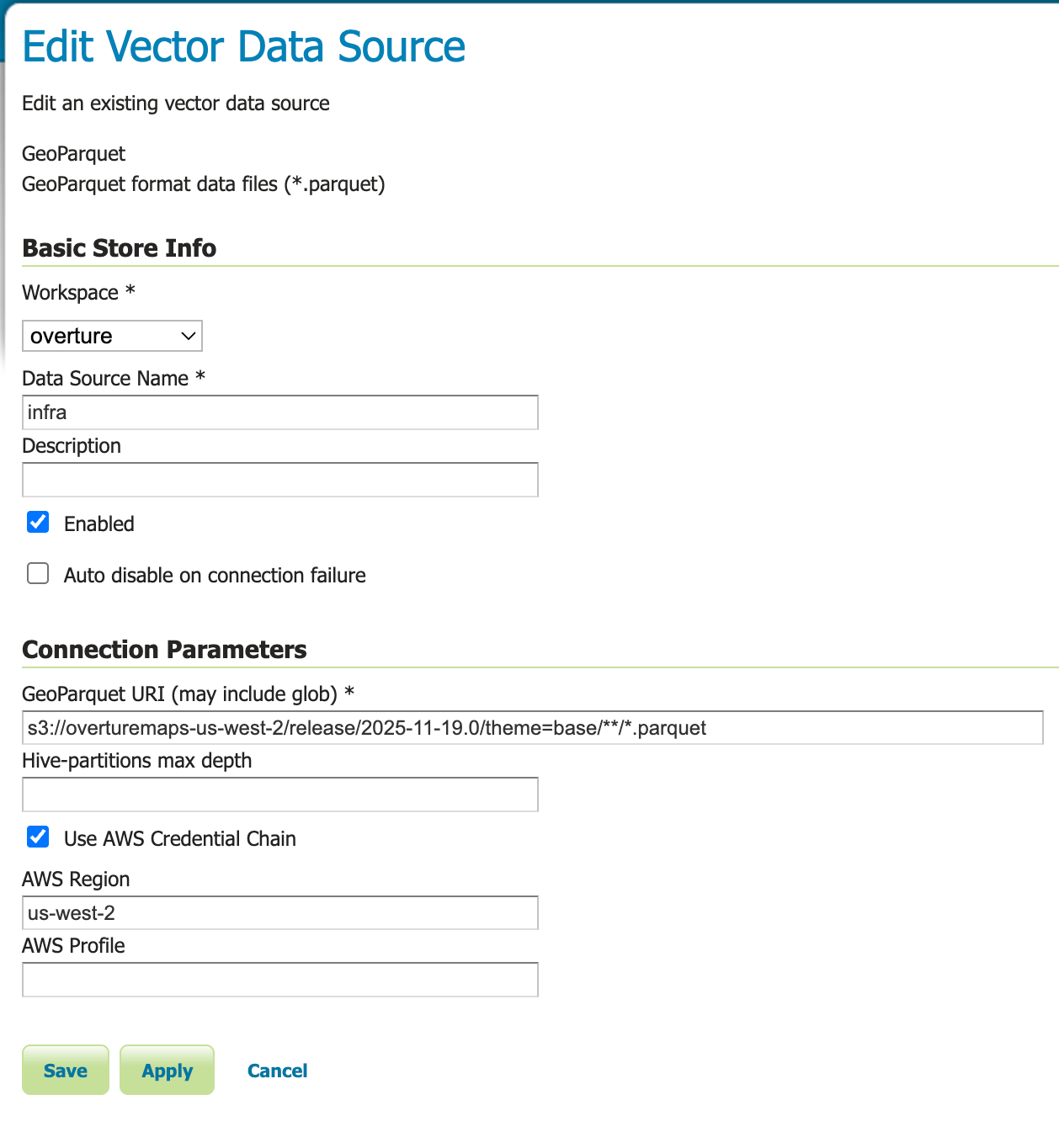
GeoParquet data store configuration panel
Note
TODO: Add screenshot of the GeoParquet data store configuration panel showing all parameters including the new AWS authentication options.
Connection Parameters
The following parameters are available when configuring a GeoParquet data store:
Parameter |
Required |
Description |
|---|---|---|
Workspace |
Yes |
The workspace in which to create the store |
Data Source Name |
Yes |
A unique name for this data store |
Description |
No |
A human-readable description of the data store |
Enabled |
Yes |
Whether the store should be enabled (checked by default) |
GeoParquet URI (may include glob) |
Yes |
URI pointing to GeoParquet file(s). Supports local files, HTTP/HTTPS URLs, S3 URIs, and glob patterns |
Hive-partitions max depth |
No |
Maximum depth of Hive partition hierarchy to use (null = all levels, 0 = none, 1+ = specific level) |
Use AWS Credential Chain |
No |
Enable AWS SDK credential chain for S3 authentication (recommended for S3 access) |
AWS Region |
No |
AWS region for S3 access (e.g., us-east-1, eu-west-1). Overrides automatic region detection |
AWS Profile |
No |
AWS profile name to load credentials from ~/.aws/credentials |
URI Examples
The GeoParquet URI parameter supports various formats:
Local Files
Point to a local GeoParquet file or directory:
file:///data/countries.parquet
/data/countries.parquet
file:///data/geoparquet-files/
With glob patterns:
/data/**/*.parquet
file:///data/year=2024/month=*/*.parquet
Remote HTTP/HTTPS
Access GeoParquet files over HTTP or HTTPS:
https://example.com/data/countries.parquet
https://storage.googleapis.com/bucket/data.parquet
Amazon S3
Access GeoParquet files stored in Amazon S3:
s3://my-bucket/data/countries.parquet
s3://my-bucket/data/**/*.parquet
Note
For S3 URIs, it is strongly recommended to use the AWS credential chain authentication method described below rather than embedding credentials in the URI.
S3 Authentication
GeoServer provides two methods for authenticating to Amazon S3. The credential chain method is strongly recommended for security and flexibility.
AWS Credential Chain (Recommended)
Enable secure, automatic credential discovery by checking the Use AWS Credential Chain checkbox. This method automatically discovers credentials from multiple sources in the following order:
Environment variables:
AWS_ACCESS_KEY_ID,AWS_SECRET_ACCESS_KEY,AWS_SESSION_TOKENAWS configuration files:
~/.aws/credentialsand~/.aws/configIAM instance profiles: For EC2 instances with assigned IAM roles
ECS task roles: For containerized applications running in ECS
AWS SSO: Single sign-on sessions and federation
Example Configuration:
GeoParquet URI: s3://my-bucket/data/countries.parquet
Use AWS Credential Chain: ✓ (checked)
AWS Region: us-west-2 (optional, overrides automatic detection)
AWS Profile: production (optional, uses specific profile from ~/.aws/credentials)
Benefits of Credential Chain:
Security: No credentials stored in GeoServer configuration or logs
Flexibility: Works across different environments (development, staging, production)
IAM Integration: Leverages AWS IAM roles and policies
No credential rotation: Credentials managed externally through AWS mechanisms
AWS Profile Configuration:
If you use multiple AWS profiles in your ~/.aws/credentials file:
[default]
aws_access_key_id = AKIAIOSFODNN7EXAMPLE
aws_secret_access_key = wJalrXUtnFEMI/K7MDENG/bPxRfiCYEXAMPLEKEY

[production]
aws_access_key_id = AKIAI44QH8DHBEXAMPLE
aws_secret_access_key = je7MtGbClwBF/2Zp9Utk/h3yCo8nvbEXAMPLEKEY
region = eu-west-1
You can specify which profile to use with the AWS Profile parameter. If not specified, the default profile or the profile set via the AWS_PROFILE environment variable will be used.
Legacy URI-Based Authentication (Deprecated)
Warning
Security Risk: Embedding credentials directly in URIs is deprecated and strongly discouraged. Credentials in URIs can be exposed through:
GeoServer logs and error messages
Stack traces
Configuration backups
Browser history (if accessed through REST API)
This method is maintained only for backward compatibility. Always use the credential chain method for production environments.
If you must use URI-based authentication, you can include credentials as query parameters:
s3://my-bucket/data.parquet?s3_region=us-west-2&s3_access_key_id=AKIAIOSFODNN7EXAMPLE&s3_secret_access_key=wJalrXUtnFEMI/K7MDENG/bPxRfiCYEXAMPLEKEY
Hive Partitioning Support
GeoParquet data stores fully support Hive-partitioned datasets, where data is organized in directory hierarchies with key=value patterns:
/data/year=2023/month=01/day=01/file.parquet
/data/year=2023/month=01/day=02/file.parquet
/data/year=2023/month=02/day=01/file.parquet
The data store automatically detects these partitions and creates separate feature types for each unique partition path. You can control the partition depth using the Hive-partitions max depth parameter:
null (empty): Use all partition levels
0: Ignore partitioning entirely
1, 2, 3, etc.: Use only the specified number of partition levels
Example: With max depth = 2 on the data above, GeoServer would create feature types like year_2023_month_01 and year_2023_month_02, ignoring the day-level partitioning.
Publishing Layers
After creating and saving a GeoParquet data store:
Navigate to
Select your GeoParquet data store from the dropdown
Click Publish next to the layer you want to publish
Configure the layer settings (bounding box, CRS, styles, etc.)
Click Save
Your GeoParquet data is now available through GeoServer’s standard services (WMS, WFS, WCS).
Working with Overture Maps Data
The GeoParquet extension works excellently with Overture Maps data, which is distributed as Hive-partitioned GeoParquet datasets. To use Overture Maps data:
Download the desired theme from the Overture Maps Foundation releases
Upload to S3 or use directly from Overture’s public S3 bucket
Create a GeoParquet data store pointing to the Overture data location
Use glob patterns and Hive partitioning to efficiently access specific themes and types
For detailed information about working with Overture Maps data, refer to the GeoParquet module documentation in GeoTools.
Troubleshooting
Common Issues and Solutions
Store creation fails with “Invalid Configuration Error: Secret Validation Failure”
When using AWS credential chain authentication, you may encounter this error:
Failed to create AWS credential chain secret: Invalid Configuration Error:
Secret Validation Failure: during `create` using the following: Credential Chain: 'config'
Cause: This error occurs when Use AWS Credential Chain is enabled but no AWS credentials are available in the expected locations.
Solutions:
Set up AWS credentials: Create the
~/.aws/credentialsfile with valid credentials:[default] aws_access_key_id = YOUR_ACCESS_KEY_ID aws_secret_access_key = YOUR_SECRET_ACCESS_KEY
Use environment variables: Set AWS credentials as environment variables before starting GeoServer:
export AWS_ACCESS_KEY_ID=YOUR_ACCESS_KEY_ID
export AWS_SECRET_ACCESS_KEY=YOUR_SECRET_ACCESS_KEY
Use IAM roles: If running on EC2, ensure an IAM role is attached to the instance with appropriate S3 permissions
Disable credential chain: If you don’t need credential chain authentication, uncheck Use AWS Credential Chain and use URI-based credentials (not recommended for production)
No feature types/layers appear after creating the store
This commonly happens when the AWS region is not correctly detected or configured.
Cause: S3 buckets are region-specific, and the datastore needs to know the correct region to access the data. While the credential chain can sometimes auto-detect the region, it may fail or use the wrong region.
Solution: Explicitly set the AWS Region parameter to match the bucket’s region.
Example: For Overture Maps data in the public bucket:
URI:
s3://overturemaps-us-west-2/release/2025-11-19.0/theme=base/**/*AWS Region:
us-west-2(must be set explicitly)
The bucket name often hints at the region (overturemaps-us-west-2), but you can also:
Check the bucket’s region in the AWS S3 Console
Look for region information in the data provider’s documentation
Try common regions:
us-east-1,us-west-2,eu-west-1
Tip
Always specify the AWS Region when accessing S3 data, even if you think it might be auto-detected. This is especially important for:
Public buckets (like Overture Maps)
Cross-region access
Buckets in non-default regions
Store creation fails with “Access Denied” for S3 URIs
Verify that AWS credentials are properly configured
Check IAM permissions for the S3 bucket
Ensure the bucket region matches the configured region
For public buckets, verify they allow anonymous access or provide appropriate credentials
GeoServer logs show parsing errors
Verify the URI points to valid GeoParquet files
Check that the GeoParquet files have valid
geometadataEnsure the files are not corrupted
Verify the glob pattern matches the intended files
Performance issues with large remote datasets
Use glob patterns to limit the files being accessed
Leverage Hive partitioning to reduce data scanned
Consider adjusting the
max_hive_depthparameterFor S3, ensure GeoServer is deployed in the same AWS region as the data
Consider caching frequently accessed data locally
Performance Considerations
Columnar Storage: GeoParquet’s columnar format allows efficient access to specific attributes without reading entire records
Cloud Optimization: GeoParquet files are optimized for cloud storage with efficient range reads
Partitioning: Use Hive partitioning to organize large datasets and enable partition pruning
Local Caching: For frequently accessed remote data, consider caching locally or using GeoServer’s tile caching
S3 Colocation: Deploy GeoServer in the same AWS region as your S3 data for optimal performance
Limitations
Read-Only: The GeoParquet extension is currently read-only; you cannot modify or write data through GeoServer
Large Files: Very large individual Parquet files may have slower initial access times
Complex Geometries: Extremely complex geometries may impact rendering performance
Community Module: As a community module, this extension has limited official support