Obtain OAuth 2.0 credentials from the Google API Console.
Visit the Google API Console to obtain OAuth 2.0 credentials such as a client ID and client secret
that are known to both Google and your application. The set of values varies based on what type of application you are building.
For example, a JavaScript application does not require a secret, but a web server application does.
Login with a valid Google Account
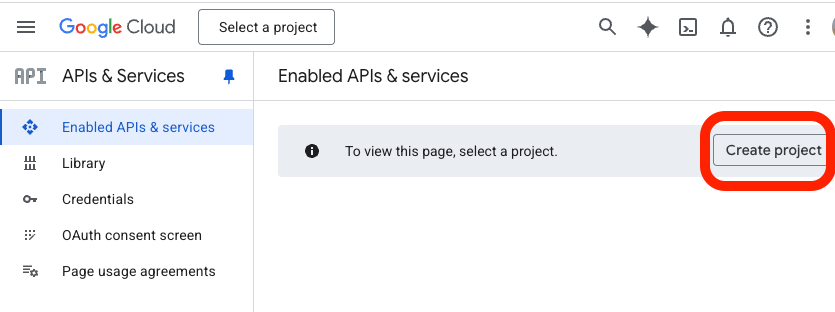
Click on Createproject
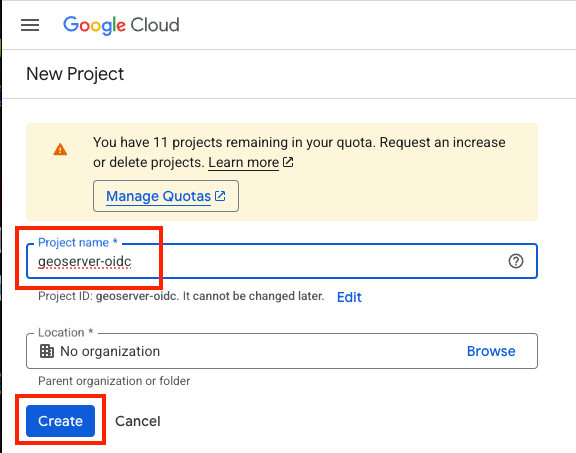
give the project a name like geoserver-oidc and press “Create”
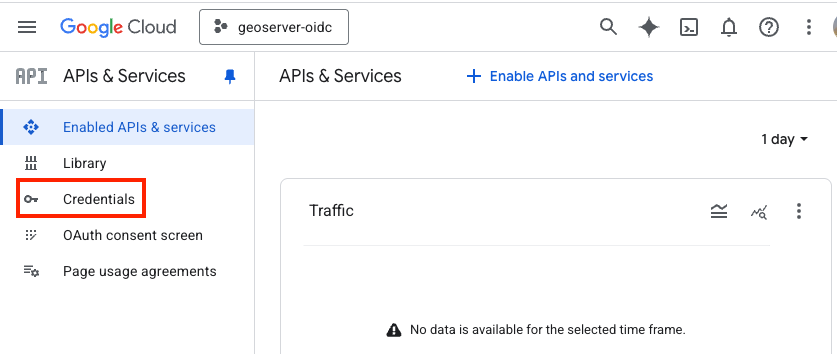
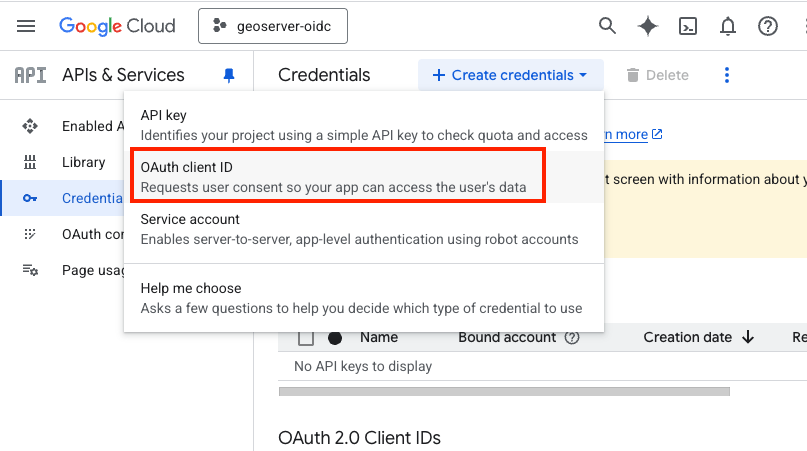
Click on Credentials (left column)
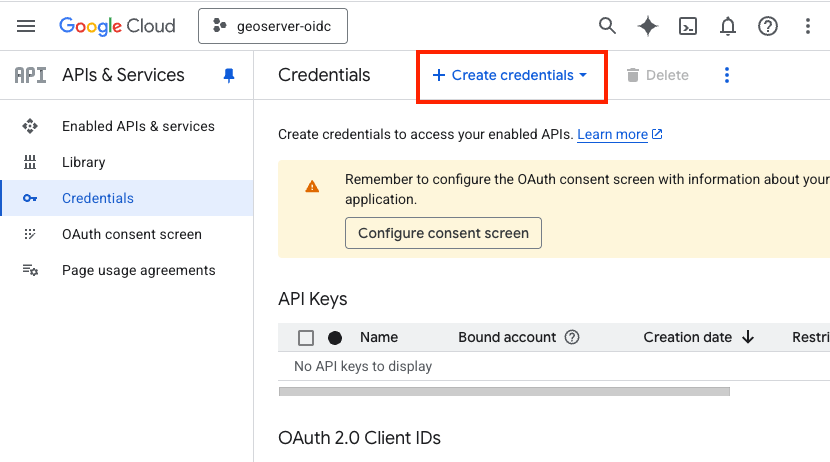
Click on “+ Create credentials” (top bar)
Choose “OAuth client ID”
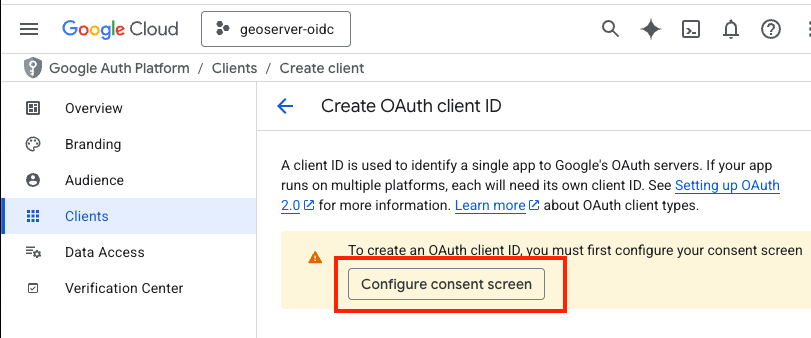
Click on “Configure consent Screen”
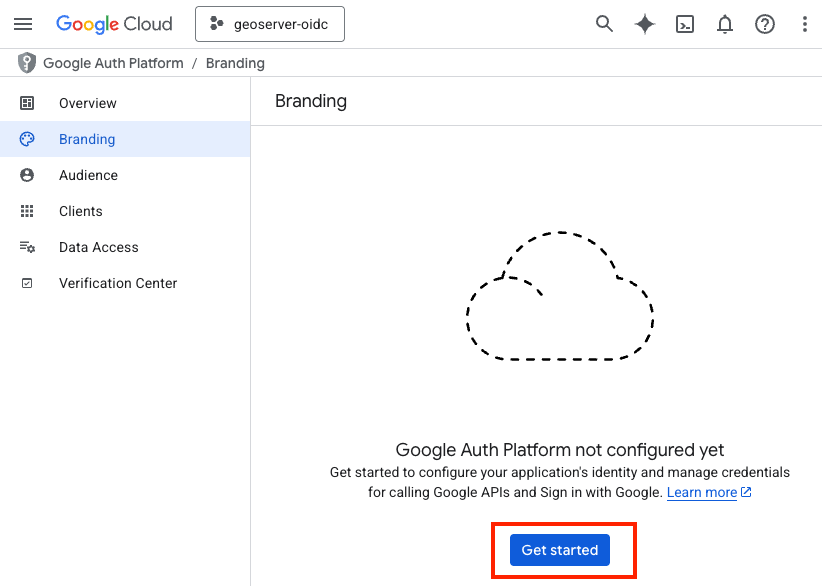
Press “Get Started”
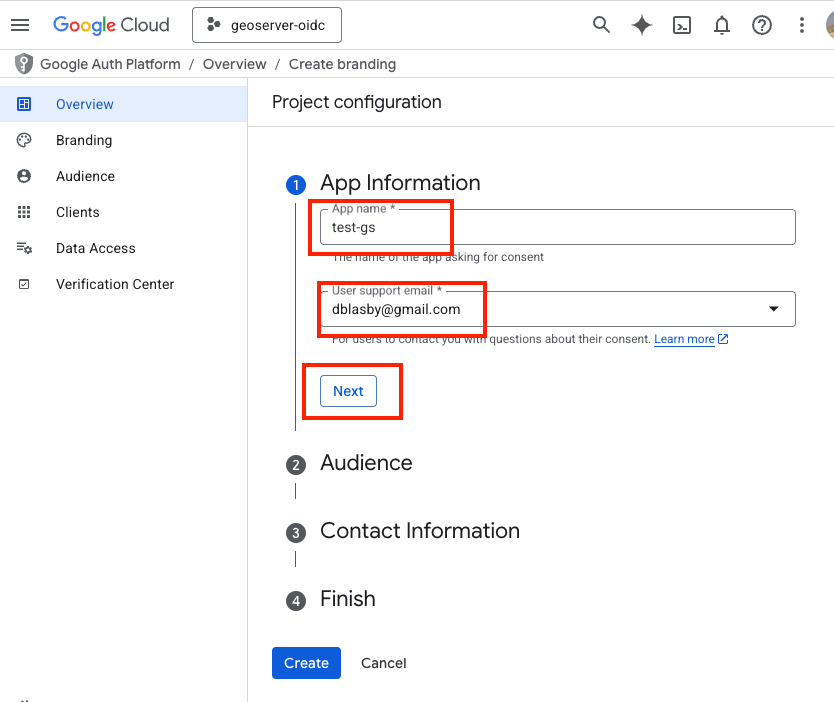
Type in an “App name” (like “test-gs”), choose your Email address, and then press “Next”
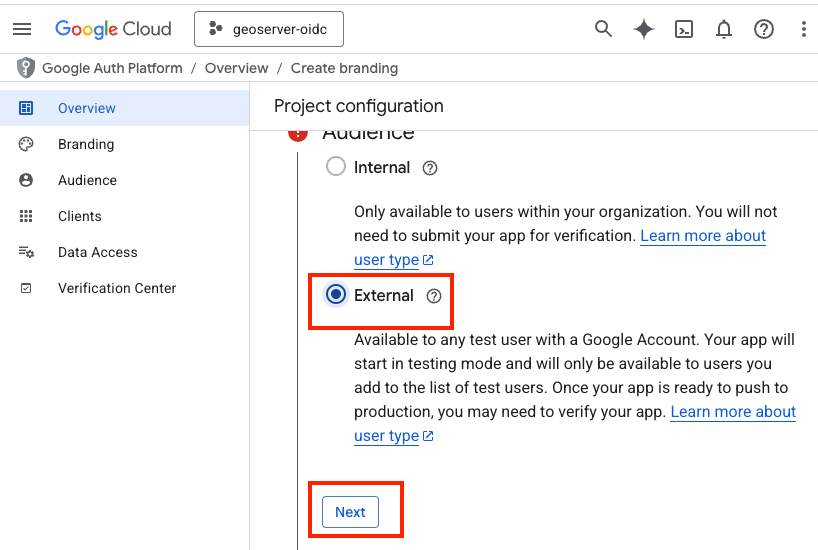
In the Audience section, choose “External” then press “Next”
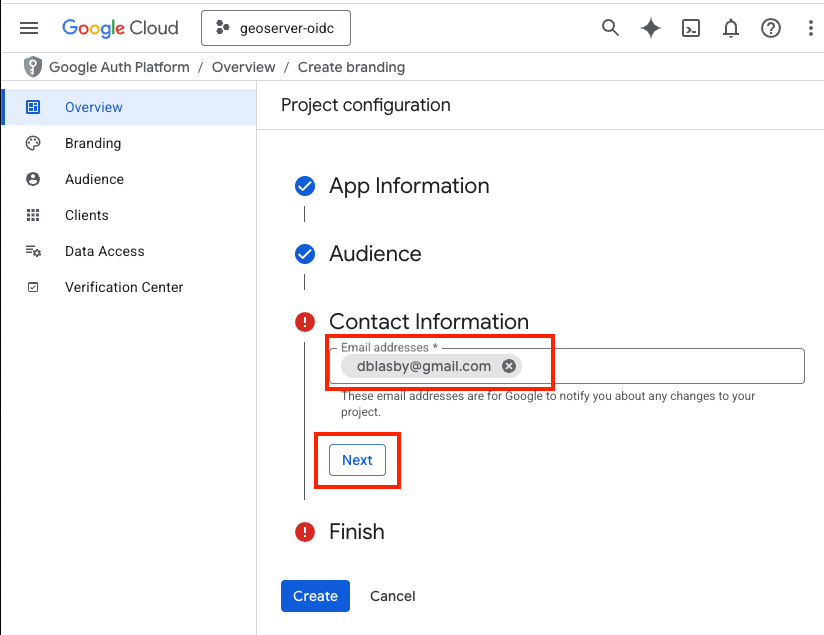
Type in a contact email, then press “Next”
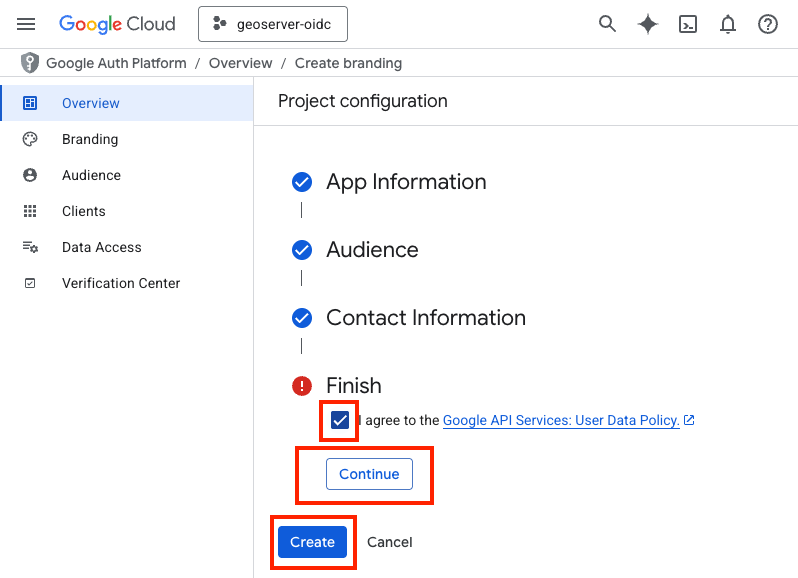
Agree to the terms, then press “Continue”, and then “Create”
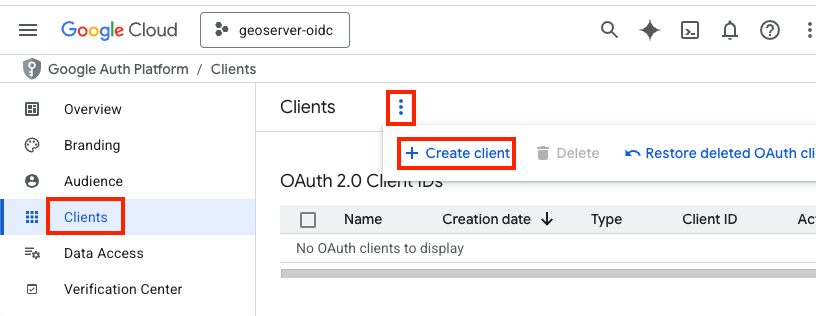
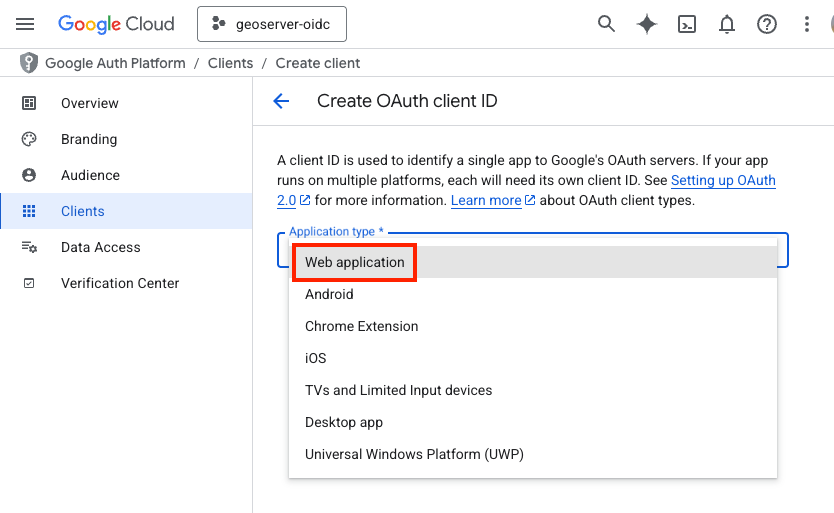
Go to Clients (Left Bar), press the 3-vertical-dots ,and then press “+ Create Client”
Choose “Web Application” and name the web application (i.e. “gs test app”)
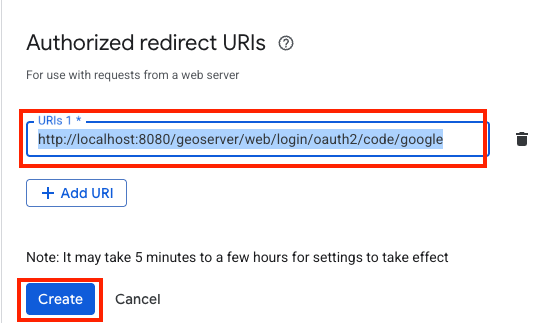
The exact redirect URI that GeoServer will use is shown as the read-only
Redirect URI field in the filter configuration form. In production,
use that value instead of localhost. See Redirect Base URI.
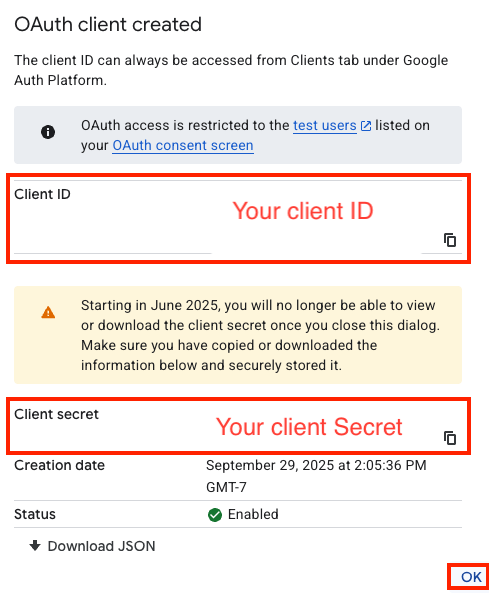
Record your Client ID and Client Secret, then press “Ok”
You will not be able to retrieve your client secret once you press “ok”
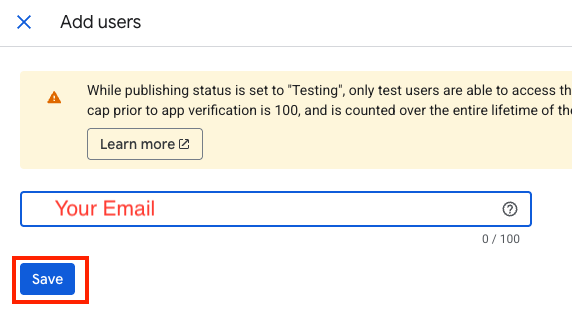
Go to “Audience” (left bar), go down to “Test Users”, press “+Add users”, and add your google email as the test user.
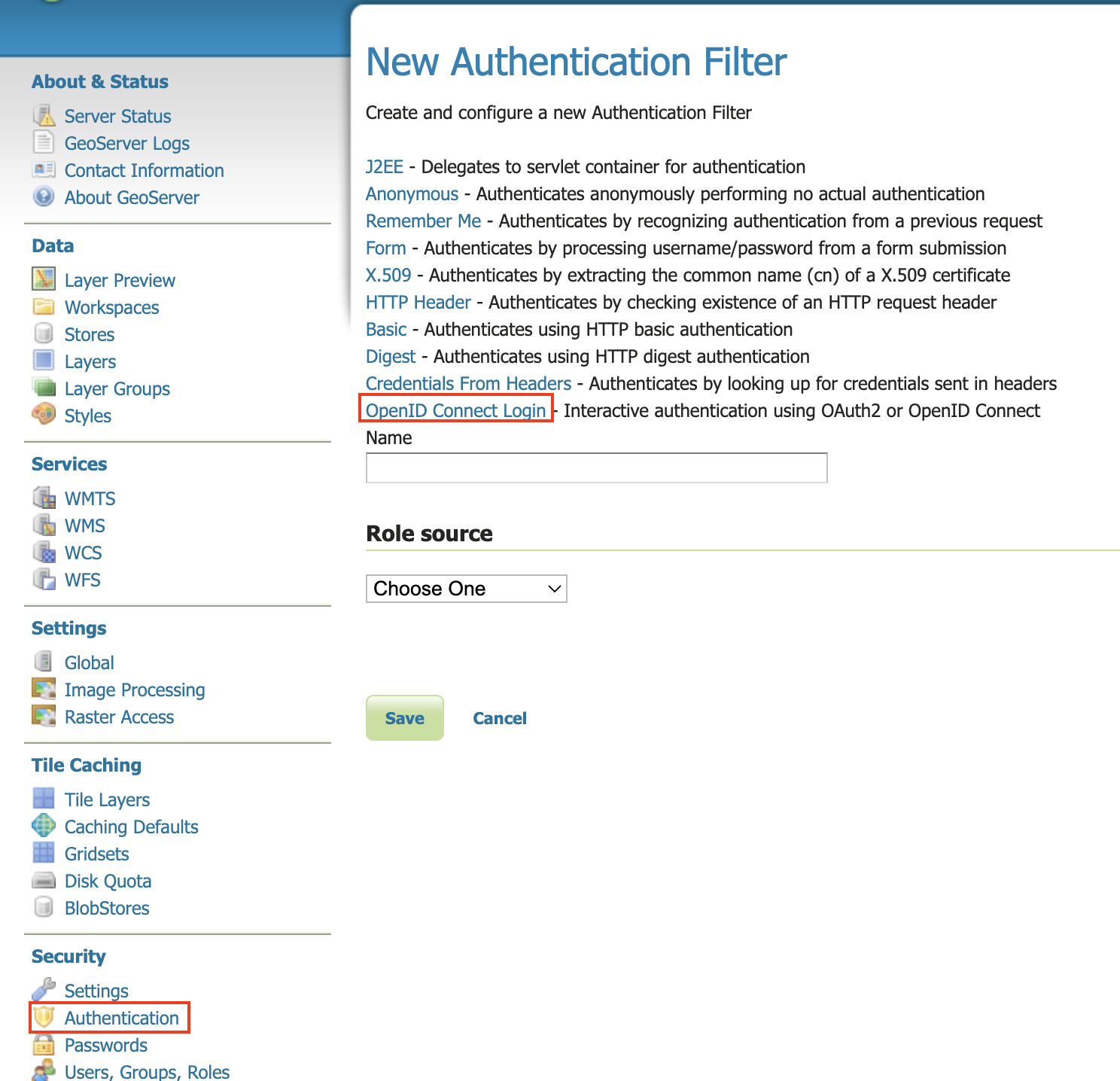
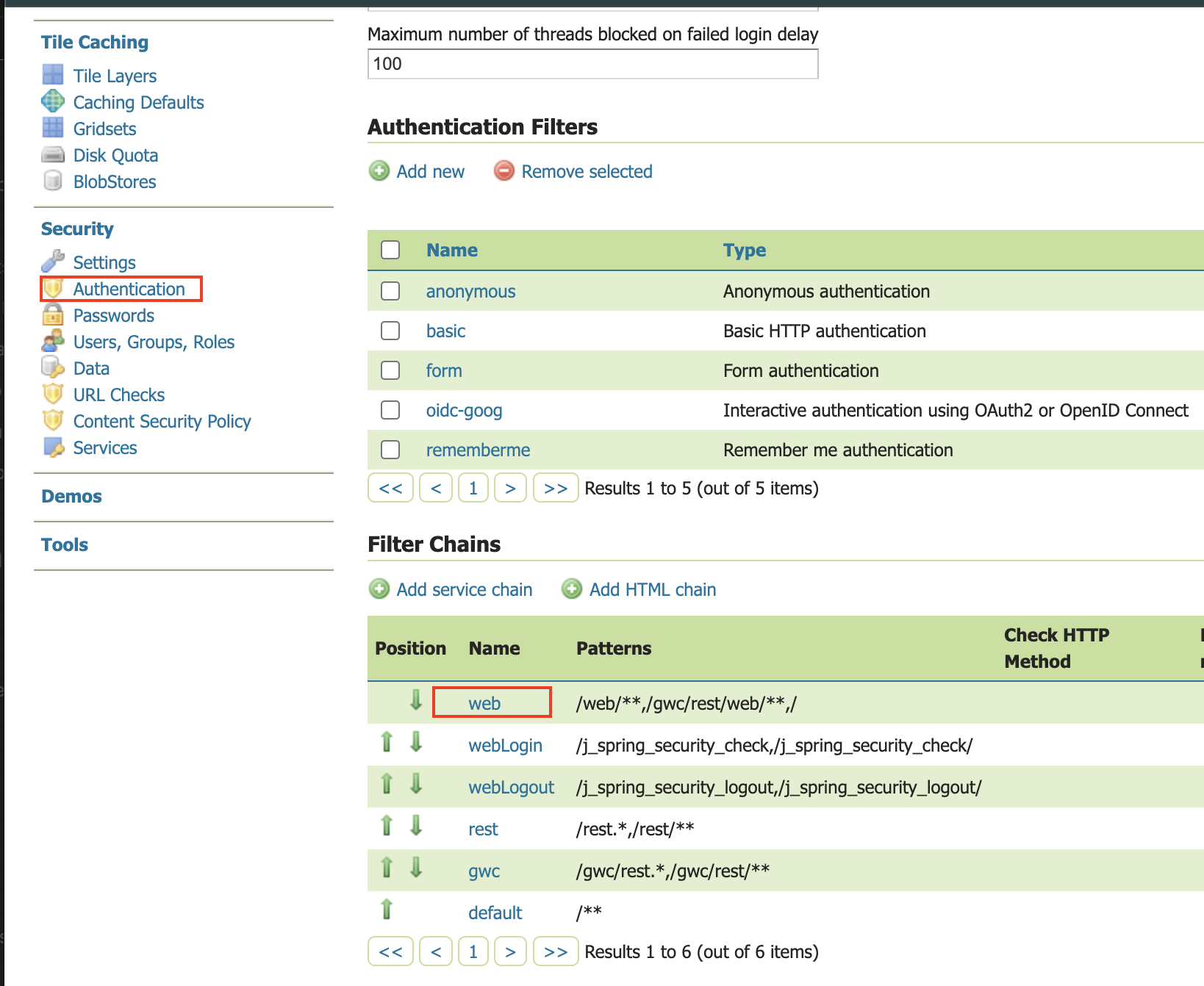
On the left bar under “Security”, click “Authentication”, and then “OpenID Connect Login”
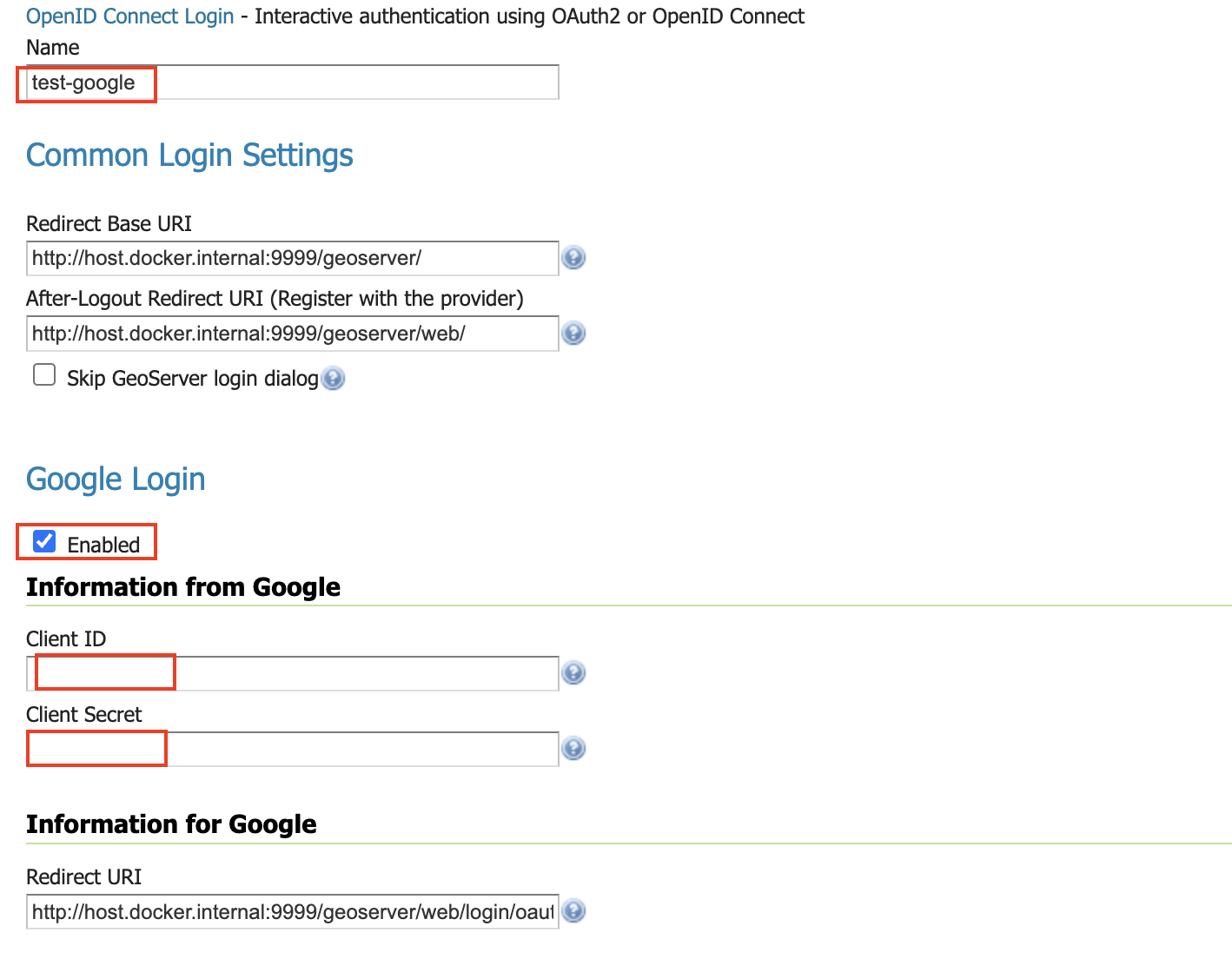
Give the it a name like “test-google”, then from the Provider dropdown select Google and copy-and-paste in the Client ID and Client Secret (from when you configured the google client).
Go down to the bottom and configure the role source (if you want) - see role source