Container Considerations
Java web containers such as Tomcat or Jetty ship with configurations that allow for fast startup, but don’t always deliver the best performance.
Optimize your JVM
Set the following performance settings in the Java virtual machine (JVM) for your container. These settings are not specific to any container.
Option |
Description |
|
By starting with a larger heap GeoServer will not need to pause and ask the operating system for more memory during heavy load. The setting |
|
Defines an upper limit on how much heap memory Java will request from the operating system (use more if you have excess memory). By default, the JVM will use 1/4 of available system memory. The setting |
|
Increases the lifetime of “soft references” in GeoServer. GeoServer uses soft references to cache datastore, spatial reference systems, and other data structures. By increasing this value to |
|
This garbage collector pauses the application while using several threads to recover memory. Recommended if your GeoServer will be under light load and can tolerate pauses to clean up memory. |
|
Enables use of the concurrent mark sweep (CMS) garbage collector uses multiple threads to recover memory while the application is running. Recommended for GeoServer under continuous use, with heap sizes of less than 6GB. |
|
The default garbage collector since Java 9. Enables use of the Garbage First Garbage Collector (G1) using background threads to scan memory while the application is running prior to cleanup. Recommended for GeoServer under continuous load and heap sizes of 6GB or more. Additionally you may experiment with |
For more information about JVM configuration, see the article Performance tuning garbage collection in Java and The 4 Java Garbage Collectors.
Note
You can only use one garbage collector at a time. Please refrain from combining garbage collectors at runtime.
Note
If you’re serving just vector data, you’ll be streaming, so having more memory won’t increase performance. If you’re serving coverages, however, image processing will use a tile cache and benefit from more memory. As an administrator you can configure the portion of memory available as a tile cache (see the Server Config page in the Web administration interface section) - for example to use 0.75 to allocate 75% of the heap as a tile cache.
Note
You can try out memory settings on the command line to check settings/defaults prior to use.
To check settings use java -Xms128m -Xmx756m -XX:+PrintFlagsFinal -version | grep HeapSize:
uintx InitialHeapSize   := 134217728     {product}
uintx MaxHeapSize       := 792723456     {product}
Which when converted from bytes matches 128 MB initial heap size, and 756 MB max heap size.
Check defaults for your hardware using java -XX:+PrintFlagsFinal -version | grep HeapSize:
uintx InitialHeapSize   := 268435456     {product}
uintx MaxHeapSize       := 4294967296    {product}
The above results (from a 16 GB laptop) amount to initial heap size of 256m, and a max heap size of around 4 GB (or around 1/4 of system memory).
Use newer Marlin rasterizer
To use a newer version of Marlin than that provided by your JVM, add the following to the JVM startup options:
-Xbootclasspath/a:$MARLIN_JAR
-Dsun.java2d.renderer=org.marlin.pisces.MarlinRenderingEngine
where $MARLIN_JAR is the location of the marlin*.jar file located in the geoserver/WEB-INF/lib directory or downloaded from the Marlin project.
The server status page shows which renderer is being used.
Enable CORS
Enable Cross-Origin Resource Sharing (CORS) allows JavaScript applications (such as OpenLayers or Leaflet) running on different domains to make requests to your GeoServer.
GeoServer provides a built-in configuration interface to enable CORS. This is the preferred method for both the standalone (embedded Jetty) and WAR (Tomcat) distributions, as it eliminates the need to manually edit configuration files.
Using the GeoServer Web Administration Interface
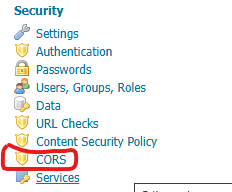
Log in to the GeoServer Web Admin interface as an administrator.
Navigate to .
Locate the CORS Settings section.
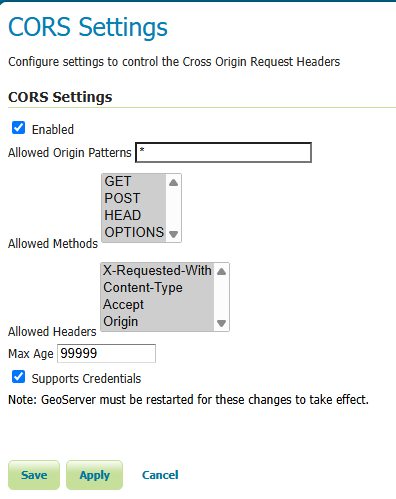
Check the Enabled box.
Configure the following options as needed:
Allowed Origin Patterns: A comma-separated list of origins (e.g.,
http://example.com, https://myapp.org). Wildcards (*) can be used to allow all origins.Allowed Methods: Select the HTTP methods permitted (usually GET, POST, OPTIONS).
Allowed Headers: Specify which headers can be used during the actual request.
Max Age: How long the results of a preflight request can be cached by the browser (in seconds).
Supports Credentials: Whether the request can include user credentials (cookies, HTTP authentication).
Click Save at the bottom of the page.
Warning
GeoServer must be restarted for these changes to take effect.
Manual Configuration (Tomcat only)
While the UI method above is recommended, administrators using Tomcat may still configure CORS manually via web.xml if desired. Please note that enabling the manual configuration is not compatible with the built-in configuration. Running them simultaneously will result in multiple allow origin values and will cause browser CORS failures. For detailed options, see the Tomcat CORS Filter documentation.
Uncomment the following
<filter>inwebapps/geoserver/WEB-INF/web.xml:<!-- Uncomment following filter to enable CORS in Tomcat. Do not forget the second config block further down. -->
Note that in some cases you may have to replace the asterisk (*) param-value for cors.allowed.methods with an explicit list: Content-Type,X-Requested-With,accept,Origin,Access-Control-Request-Method,Access-Control-Request-Headers,Authorization
Uncomment the following
<filter-mapping>:<!-- Uncomment following filter-mapping to enable CORS -->
Restart