OGC API - 3D GeoVolumes
An OGC API - 3D GeoVolumes service publishing 3D contents data using an OpenAPI web service.
3D GeoVolumes Implementation status
The 3D GeoVolumes implementation is based on August 2024 draft of the specification, implementing the core conformance class only (the bbox search class is not implemented).
Installing the GeoServer OGC API 3D GeoVolumes module
-
Download the OGC API nightly GeoServer community module from ogcapi-3d-geovolumes.
Warning
Verify that the version number in the filename corresponds to the version of GeoServer you are running (for example geoserver-3.1.0-ogcapi-3dgeovolumes-plugin.zip above).
-
Extract the contents of the archive into the
WEB-INF/libdirectory of the GeoServer installation. -
On restart the services are listed at http://localhost:8080/geoserver
Configuring the 3D GeoVolumes service
The service is based on a set of static configuration files that can be found either in:
- The
geovolumesdirectory found inside a GeoServer data directory - An external directory, specified by the
GEOVOLUMES_LOCATIONproperty (either environment variable, system property, or servlet context property inweb.xml).
The directory needs to contain a single file, a collections.json that represents a simplified version of what GeoServer will return on the collections resource.
Here is an example with a single collection defined:
{
    "collections": [
      {
        "id": "NewYork",
        "title": "NewYork",
        "description": "All Supported 3D Containers for the city of NewYork. Please zoom on Manhattan when using the Cesium viewer, only have zoom level 14.",
        "collectiontype": "3d-container",
        "extent": {
          "spatial": {
            "bbox": [
              [
                -74.01900887327089,
                40.700475291581974,
                -11.892070104139751,
                -73.9068954348699,
                40.880256294183646,
                547.7591871983744
              ]
            ],
            "crs": "http://www.opengis.net/def/crs/OGC/0/CRS84h"
          }
        },
        "content": [
          {
            "title": "NewYork - 3D Buildings Manhattan: 3D Tiles",
            "rel": "original",
            "href": "NewYork/3dtiles/tileset.json",
            "type": "application/json+3dtiles"
          },
          {
            "title": "NewYork - 3D Buildings Manhattan: i3s",
            "rel": "original",
            "href": "https://tiles.arcgis.com/tiles/P3ePLMYs2RVChkJx/arcgis/rest/services/Buildings_NewYork_17/SceneServer/layers/0/",
            "type": "application/json+i3s"
          }
        ]
      }
    ]
}
Highlights:
- This configuration file can be updated while GeoServer is running, and it will pick up the new configuration automatically (make sure it's valid JSON when you save it).
- The mandatory elements for the HTML templates to work are
id,title,description, a 3Dbboxand at least onecontententry. - There is no need to create a "links" array, GeoServer will automatically fill links with the correct values based on the current request. It's however possible to add a "links" array, if custom links are desired.
- Any href found in
links,contentsand eventualchildrenarrays will be kept as is, if it happens to be an absolute reference to some web resource. If instead a relative path inside thegeovolumesdirectory is found, it will be resolved and made available as a web resource in the service, replacing it with a link that can be followed in all collections representations.0 - The relative references must be inside the
geovolumesdirectory, usage of ".." is disallowed to prevent path traversal attacks from admins, on hosted GeoServer deploys. - The typical contents of the
geovolumessubdirectories will be either Cesium 3D tiles, or i3s tiles.
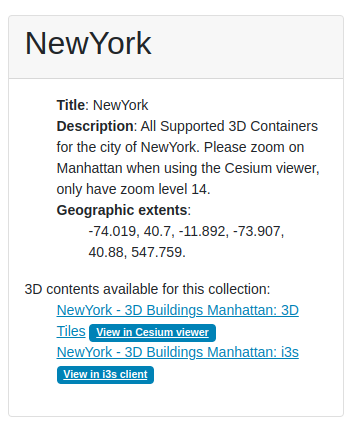
The contents of the collections.json file will be exposed both in collections and single collection resources. If Cesium 3D tiles are found, a Cesium viewer link will be added to the collection HTML representation, if i3s tiles are found, a i3s viewer link will be added too.
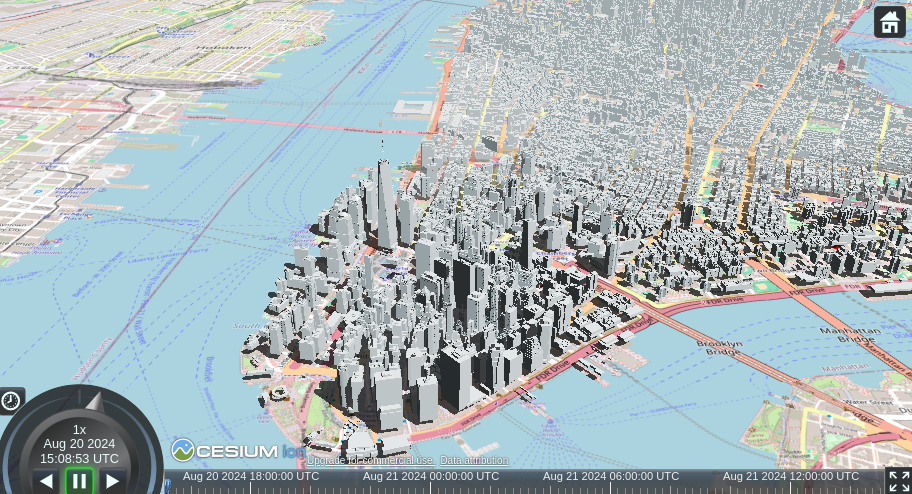
Here is an example of collection HTML rendering and its associated Cesium view:
Note
The Cesium viewer needs a Cesium access token to use the terrain layer. By default it's missing, which may result rendering "flying buildings" in mountain areas. See templates customization below on how to add your token.
Quick start
A quick start example containing a geovolumes directory can be found here. Just unpack it into the GeoServer data directory, add the 3D GeoVolumes service, and play with the New York and Stuttgart 3D models.
HTML Templates
To override an OGC API 3D Feature template:
- Create a directory for template overrides at
GEOSERVER_DATA_DIR/templates/ogc/3dgeovolumes/v1 - Create a file in this location, using the GeoServer 3.1.0 examples below:
In particular, overriding the Cesium template allows to specify a custom access token, which will then enable the 3D terrain support. For example:
<html lang="en">
 <head>
     <meta charset="utf-8">
     <script src="https://cesium.com/downloads/cesiumjs/releases/1.83/Build/Cesium/Cesium.js"></script>
     <link href="https://cesium.com/downloads/cesiumjs/releases/1.83/Build/Cesium/Widgets/widgets.css" rel="stylesheet">
     <script src="${baseURL}webresources/ogcapi/3d/cesium.js" type="text/javascript"></script>
 </head>

 <body>
     <div id="cesiumContainer" style="width: 100%; height:100%; margin:0;"></div>
     <input type="hidden" id="cesiumAccessToken" value="yourCustomAccessTokenHere"/>
 </body>
  </html>
Making Cesium and i3s demos work with GeoServer CSP
GeoServer ships with a Content Security Policy (CSP) that will prevent Cesium and i3s viewers from working out of the box. To enable them, you need to either:
-
Disable CSP fully (recommended only in demo environments):
-
Go to GeoServer web admin page
- Select "Security" -> "Content Security Policy"
- Disable "Enable Content Security Policy"
-
Save
-
Configure CSP to allow downloads from Cesium and i3s servers. This a bit complex, you will need to modify the GeoServer CSP configuration.
-
Go to GeoServer web admin page
- Select "Security" -> "Content Security Policy"
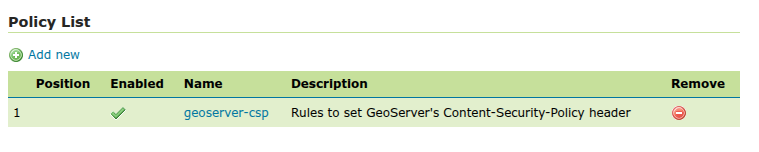
- In the "Policy List" section, open the "geoserver-csp" policy
-
In the Rule List, click on "Add new" to configure a new policy for Cesium:
-
Name: `3dgeovolumes-cesium``
-
Request Filter:
PATH(^/ogc/3dgeovolumes/v1/cesium$) -
Header Directives:
5. Save the rule, and proceed to add a new one for i3s: - Name: `3dgeovolumes-i3s``base-uri 'self'; default-src 'none'; frame-ancestors 'self'; form-action 'self'; script-src 'self' https://cesium.com https://*.cesium.com 'unsafe-inline' 'unsafe-eval'; style-src 'self' https://cesium.com https://*.cesium.com 'unsafe-inline'; img-src 'self' https://cesium.com https://*.cesium.com https://tile.openstreetmap.org https://*.tile.openstreetmap.org data:; font-src 'self' https://cesium.com https://*.cesium.com data:; connect-src 'self' https://cesium.com https://*.cesium.com https://tile.openstreetmap.org https://*.tile.openstreetmap.org; worker-src 'self' https://cesium.com https://*.cesium.com blob:; child-src 'self' https://cesium.com https://*.cesium.com blob:; -
Request Filter: PATH(\^/ogc/3dgeovolumes/v1/i3s\$)
-
Header Directives:
base-uri 'self';
default-src 'none';
frame-ancestors 'self';
form-action 'self';

script-src 'self' https://*.arcgis.com https://services.arcgisonline.com 'unsafe-inline' 'unsafe-eval';
style-src  'self' https://*.arcgis.com https://services.arcgisonline.com 'unsafe-inline';
img-src    'self' https://*.arcgis.com https://services.arcgisonline.com data:;
font-src   'self' https://*.arcgis.com https://services.arcgisonline.com data:;
connect-src 'self' https://*.arcgis.com https://services.arcgisonline.com;

worker-src 'self' https://*.arcgis.com https://services.arcgisonline.com blob:;
child-src  'self' https://*.arcgis.com https://services.arcgisonline.com blob:;
-
-
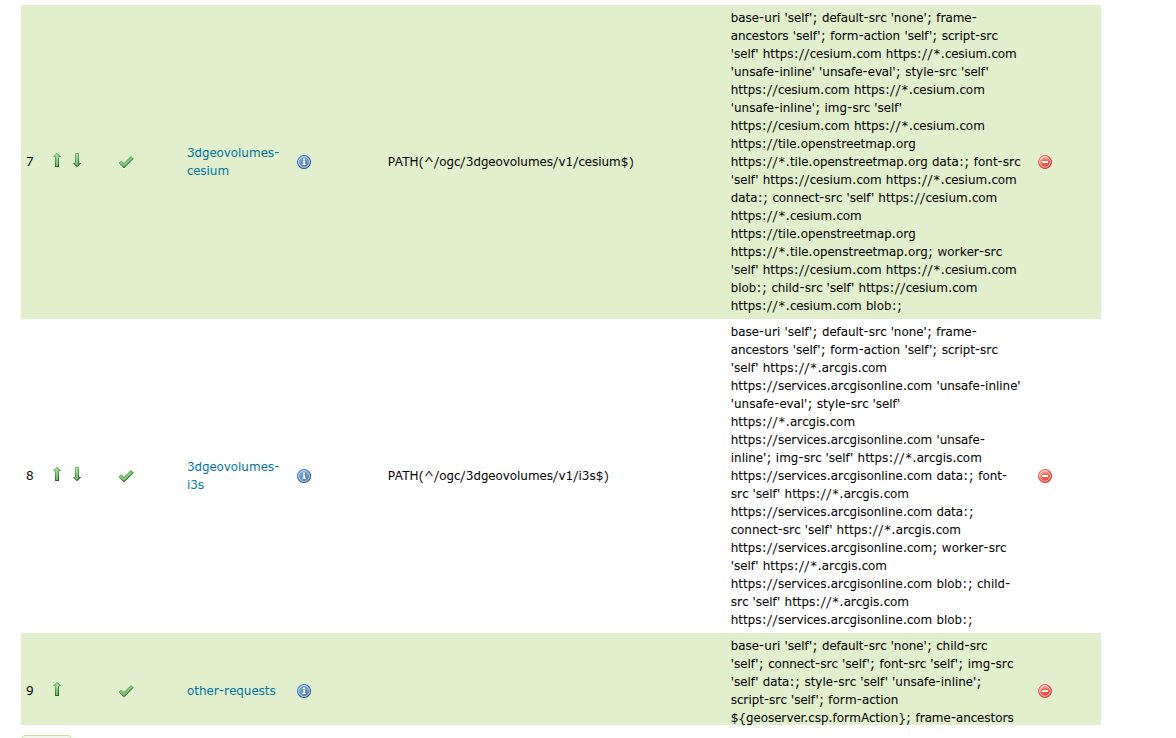
Save the i3s rule, and then use the arrows to place the Cesium and i3s rules above the "other requests" line, it should look as follows:
- Finally click Save on the geoserver-csp policy page, and then again on the main Content Security Policy main page. The Cesium and i3s viewers should now work correctly.