Configuring a DuckDB Data Store
Creating a DuckDB Store
Navigate to .
Select DuckDB.
Fill in the connection parameters.
Save the store and publish layers from the discovered feature types.
Connection Parameters
The following screenshot shows the DuckDB store form in GeoServer:
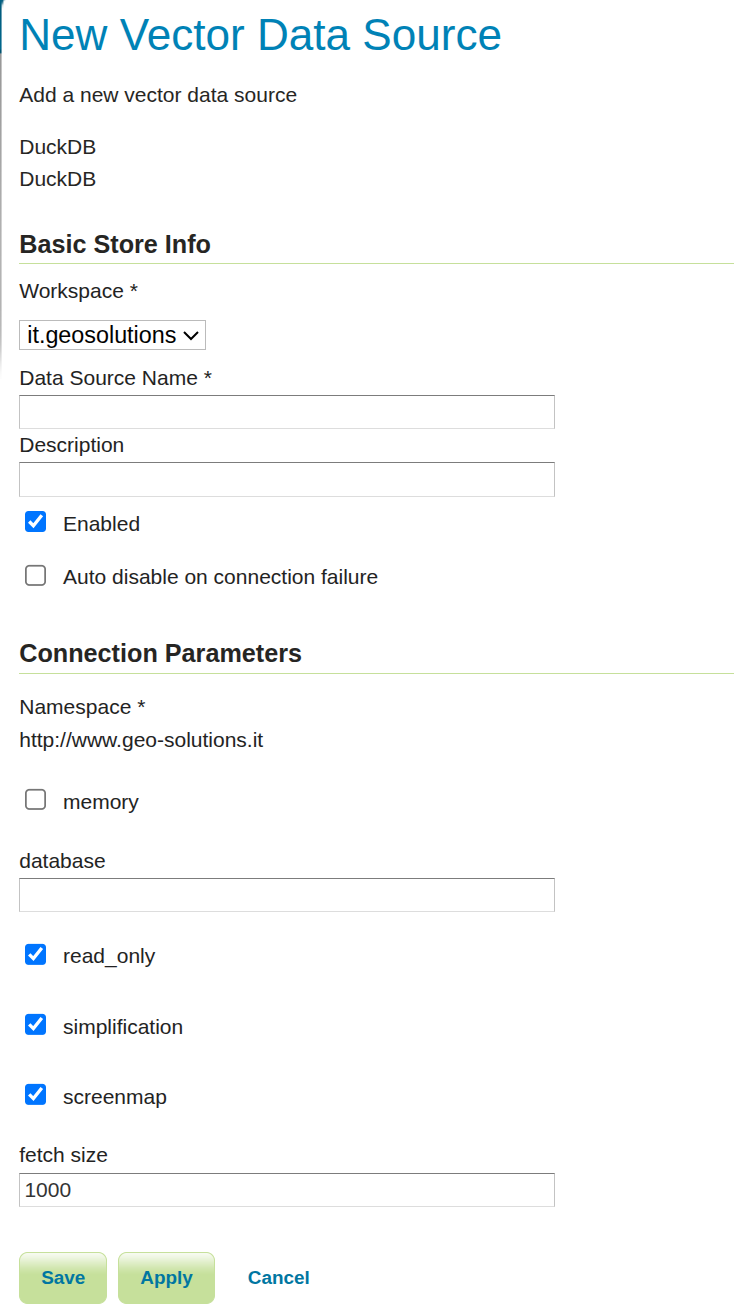
DuckDB store configuration form.
The following parameters are relevant for DuckDB:
|
Must be |
|
If |
|
Path to the DuckDB database file. Required when |
|
Enables read-only mode for the store. Default is |
|
Enables SQL-side geometry simplification when rendering/query hints request it.
Default is |
|
Enables screenmap rendering optimization to skip features that fall in already painted screen pixels.
Default is |
|
Namespace URI used for published feature types. |
|
JDBC fetch size hint for result streaming. |
Storage Configuration Rules
DuckDB store configuration enforces the following:
memoryanddatabaseare mutually exclusive.If
memory=false,databaseis required.If
memory=true,databasemust not be provided.
Security Model
The DuckDB datastore in GeoServer uses a guarded execution policy from GeoTools:
Store instances are read-only by default (
read_only=true).SQL execution is restricted to approved statement categories.
Session script style SQL and multi-statement SQL are blocked.
User-defined SQL view workflows are not supported for DuckDB stores.
Write Mode
To enable writes for a specific store, set read_only=false.
When write mode is enabled, GeoTools can execute managed DDL/DML statements required by datastore operations. Keep this disabled unless you explicitly need write behavior.